

Custom Shader Affector
Updated: 15 Jul 2026
Add a custom .fx shader script as a Particle Affector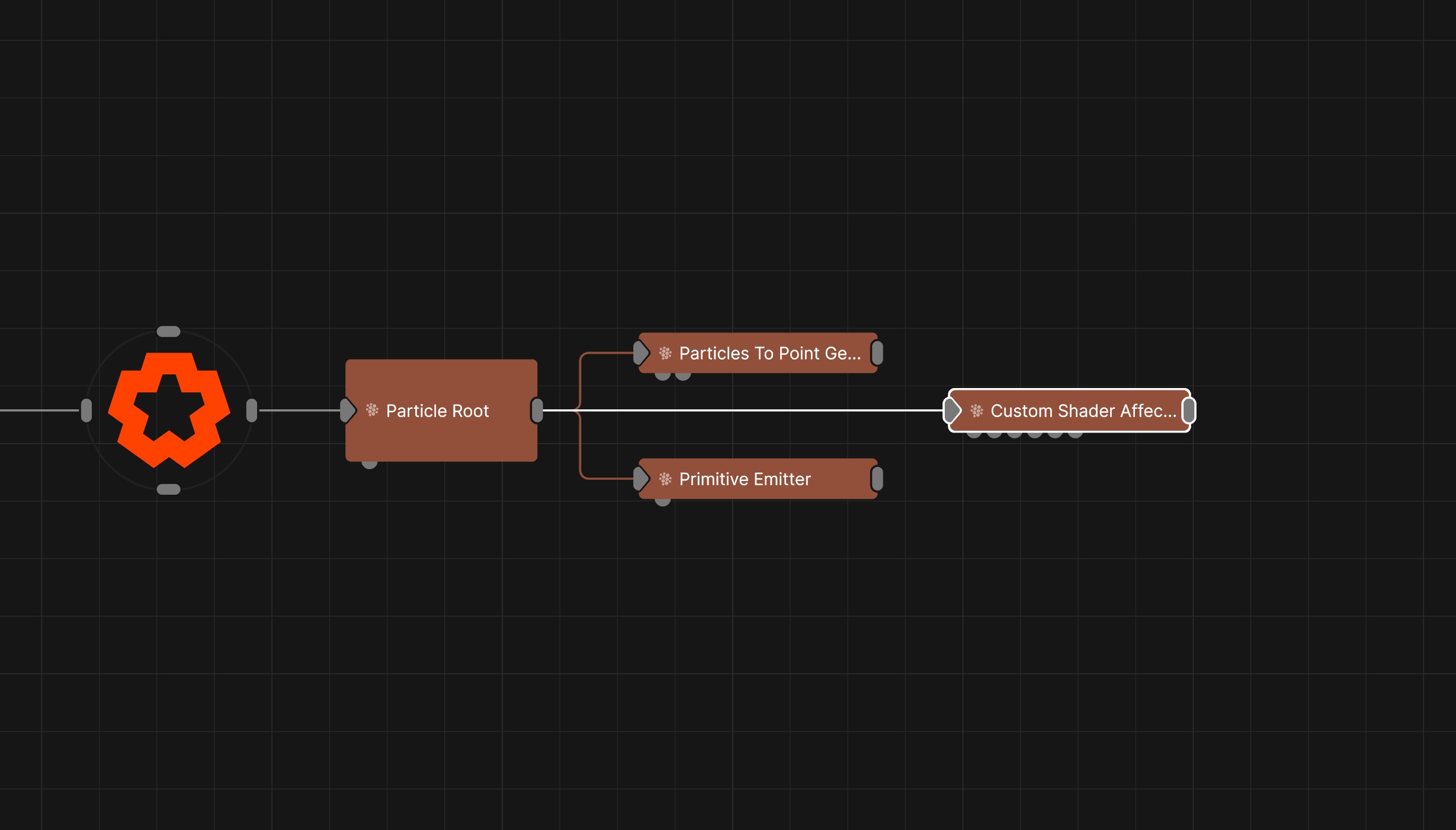
Updated: 15 Jul 2026
Add a custom .fx shader script as a Particle Affector
See Working With Custom Shaders for an overview on managing .fx resources and HLSL scripts in Notch.
If you are working with custom shaders using an LLM based assistant, it is often best to create the Example Shader Script and upload it to be understood, as well as pointing to the Working With Custom Shaders page to provide the necessary information to get good results.
This node allows you to add a custom .fx shader script as a Particle Affector. This then lets you create your own custom particle affectors using shader code. This is a great way of expanding the capabilities of particle systems in Notch, and with careful design and implementation can lead to endless possibilities of innovative, efficient particle-based looks. Notch shaders are written in HLSL.
Custom Particle Affectors allow for the manipulation of velocity, colour, normals, scale (via the normal buffer’s w component) of particles via your own code. For an overview of particle systems and how to use affectors within them, see This Page.
This node receives information on a particle system once per frame. As determined by your HLSL code, you can perform operations on that data and use it to affect the behaviour of particles. You can also define your own variables that can be controlled from the Property Editor or via modifiers, just like other parameters in Notch.
As with all particle affectors, the order of nodes in the node graph will impact the order of operation and therefore the behaviour of particle affectors. In short, affectors that are placed at the top left of the node graph will be processed first, then those that are lower down. For more information on this, see this section on Node Hierarchy and Data Flow
Custom Shader Particle Affectors require the implementation of your own code to determine the behaviour of the affector, and requires some knowledge of these systems to implement. Use of custom shaders is at your own risk. 10Bit does not provide support for custom shader code. If you experience an issue with a project/block you will need to demonstrate your issue without your custom shader in the nodegraph, to be able to receive support from the 10bit team. Support is only available for issues specifically related to the functionality of the Custom Shader Node, not for any custom code. External tools are available that can provide good assistance in writing these nodes when provided with the example script.
Once you have gotten set up with the example script you are ready to start reading and customising it. This script uses mathematical functions to animate the velocity, scale and colour of the particles it acts on, as determined by it’s amount value and it’s falloff properties (the falloff applies a weighting to each particle that can be used to set how much the affector acts on any given particle).
Within this file:
CS_GenerateAffectorVelocities. This function is run once per frame, per particle. N.B. This code will run on multiple threads simultaneously.The Custom Shader Particle Affector lets you input floats and colours, with sliders, colour controls, check boxes or menu options.
These parameters are declared in the example script like so:
float Freq_X < string propertyName = "Freq X"; > = 1.0f;
float Freq_Y < string propertyName = "Freq Y"; > = 0.0f;
float Freq_Z < string propertyName = "Freq Z"; > = 1.0f;
float Rotate_All = 0.0f;
float Scale_All = 0.0f;
This is just a code snippet. You can download the full example script here.
All global parameters without semantic (: PARAM) binding are user params.
The property name can be set with < ... > annotations to describe its attributes. Supported annotations for properties are as follows:
| Annotation | Description |
|---|---|
string propertyName = "My Name" |
Name shown in the Notch property editor |
float propertyMin = 0.0f |
Controls the default min range of the slider property |
float propertyMax = 1.0f |
Controls the default max range of the slider property |
bool propertyHide = true |
Hides the shader parameter from the property editor |
string propertyType = "colour" / "checkbox" |
When not given, float slider is used as default |
string propertyEnums[] = { "Small", "Big" } |
A list of property enums, gives values 0, 1, .. to the shader code |
Custom RW buffers also support the following annotations:
| Annotation | Description |
|---|---|
int byteSize = 4 |
How many bytes are reserved for the custom RW buffer |
int numItems = 1000 |
Override the number of items in the custom buffer (default or 0 reserves number of particles) |
bool clear = true |
Clears the custom buffer to 0 every frame |
For example:
// Would create a slider named Freq Y, which has the default range of -10.0 to 10,0, and a default value of 0.
float Freq_Y <
string propertyName = "Freq Y";
float propertyMin = -10.0f;
float propertyMax = 10.0f;
> = 0.0f;

// Would create a menu with options displayed as small and big, and would return 0 and 1 respectively.
float Size_Object <
string propertyName = "Size";
string propertyEnums[] = { "Small", "Big" };
> = 0.0f;
This is just a code snippet. You can download the full example script here.
If no annotations are applied, the property will be displayed with the variable name as the property name, with underscores converted to spaces. It will be assigned a value slider with a default range of 0 to 1.
A key part of using this node is the use of buffers. These buffers are read once per frame. They are accessed to get information on each particle. This data can then be manipulated and saved back into the writable buffers. The buffers will then be used to update the properties of each particle once per frame.
The buffers available to work with are as follows:
| Buffer Name | Type | Description |
|---|---|---|
PositionLifeBuffer |
StructuredBuffer<float4> |
Read-only. .xyz is the world position of the particle. .w is the remaining lifetime of the particle. |
VelocityTimeBuffer |
StructuredBuffer<float4> |
Read-only. .xyz is the particle’s current velocity. .w is the particle’s total lifetime. |
RWAffectorVelocityBuffer |
RWStructuredBuffer<float4> |
The velocity delta contributed by particle affectors for this frame. Add your velocity contribution here using +=. This is summed with other affectors. |
RWVelocityTimeBuffer |
RWStructuredBuffer<float4> |
.xyz is the actual Velocity of the particle, add your own to sum up to the simulated velocity |
RWColourBuffer |
RWStructuredBuffer<float4> |
Per-particle RGBA colour stored as a float4. Value range for RGBA is 0.0 to 1.0. |
RWParticleNormalBuffer |
RWStructuredBuffer<float4> |
Read and write. .xyz is the particle’s normal direction. .w is the particle’s scale. |
ParticleWeightBuffer |
StructuredBuffer<float> |
Read-only. A per-particle weight value used to mask the affector’s influence. When this is 0.0 for a particle, the affector can be skipped entirely. Check this first before doing any work on a particle. |
The following system values are also available:
| Name | Type | Description |
|---|---|---|
MaxNumParticles |
uint |
The maximum number of particles in the simulation, as defined by the Particle Root. |
World |
float4x4 |
The object-to-world transform matrix. |
PreviousWorld |
float4x4 |
The object-to-world transform matrix from the previous frame. |
WorldInverse |
float4x4 |
The inverse of the world transform matrix. |
WorldViewProjection |
float4x4 |
The combined world, view, and projection matrix. |
Amount |
float |
The global strength value for the affector, controlled from the Property Editor. Bound via : AMOUNT. |
AnimationTime |
float |
The current animation time in seconds. |
TimeDelta |
float |
The time elapsed since the last frame in seconds. |
You can create your own custom buffers to hold information across frames. By default, each particle will have a dedicated entry in the buffer, indexed by particleIdx.
The buffers will be cleared once to 0 on load, and can be reset using the node’s reset pin. The size of a buffer item must be defined with the byteSize annotation as shown in the example script:
RWStructuredBuffer<float> RWCustomParticleBuffer <int byteSize=4;>;
You can also use the clear = true annotation to clear a custom buffer to 0 automatically every frame. This is useful when you want a buffer that reflects only the current frame’s state rather than accumulating values across frames.
As with lots of Notch’s other particle affectors, this node gives you a built in Amount parameter, bound to the semantic : AMOUNT. This works like a global strength value, that is controlled from the Property Editor.
It is declared in the example code like this:
float Amount : AMOUNT;
And used like this later on:
RWAffectorVelocityBuffer[particleIdx] += Velocity_Amount * float4(affectorVelocity, 0.0f);
RWVelocityTimeBuffer[particleIdx] += Force_Amount * float4(affectorVelocity, 0.0f);
Writing to RWAffectorVelocityBuffer applies a temporary per-frame velocity contribution that is accumulated with other affectors. Writing to RWVelocityTimeBuffer applies a direct persistent change to the particle’s velocity, more like a continuous force. The example exposes both Velocity_Amount and Force_Amount as user parameters so you can blend between the two behaviours.
What you write within the function CS_GenerateAffectorVelocities determines how your particles are affected. This is totally customisable and is where you really make your own affectors.
The example function first retrieves the particle index using GetParticleIdx, then checks the particle’s weight. If the weight is effectively zero the particle is skipped entirely, which is an important performance consideration with large particle counts.
For active particles, it reads position and velocity data, transforms the world position into the affector’s local space using WorldInverse, and samples the falloff. It then calculates a velocity direction based on the local position, scales the particle, blends the colour toward Affect_Colour, and applies a sine-wave modulated velocity contribution to create animated rippling movement. The final velocity is written to both RWAffectorVelocityBuffer and RWVelocityTimeBuffer scaled by Velocity_Amount and Force_Amount respectively.
The node can be reset by sending a momentary value of 1 into its input pin. In practice this clears all its buffers and resets its effect.
By default, custom buffers are cleared once on load and on reset. If you need a custom buffer to reset to 0 every frame — for example if it is used to accumulate per-frame data rather than carry state across frames — you can add the clear = true annotation when declaring the buffer:
RWStructuredBuffer<float> RWCustomParticleBuffer <int byteSize=4; bool clear=true;>;
This ensures the buffer is zeroed at the start of each frame before your shader runs.
When you are working with this node, you may make errors in your code that cause the node not to function. For this reason, useful information is shown inside of Notch’s log window to point out where you have gone wrong. It is recommended to work with your log window open when editing your code. This can be done from View -> Log Window.
This compute shader runs 64 threads simultaneously per group, each processing one particle in parallel. This is part of what makes particle systems efficient, but it introduces some rules you need to follow to avoid unpredictable results.
particleIdx. As long as you only read and write to your own index, you are safe. However, if you start using the current thread to overwrite information about other particles, that information could well be overwritten by another thread that runs just after it.GetParticleIdx(DispatchThreadId) to compute your index, not DispatchThreadId.x alone.The particle affector provides both World and WorldInverse matrices. Particle positions in the buffers are in world space, so to work in the affector’s local space (for example to create effects relative to the node’s position and orientation) you need to transform positions using WorldInverse first, as the example does.
#if 1
#include "FalloffShaderDef.h"
// Falloff API
// GetFalloff(float3 pos)
#endif

// .xyz Position of the particle, .w time that particle has left of the particle life time
StructuredBuffer<float4> PositionLifeBuffer : POSITIONLIFEBUFFER;

// .xyz Velocity of the particle, .w particle life time
StructuredBuffer<float4> VelocityTimeBuffer : VELOCITYTIMEBUFFER;

// .xyz is the particle Velocity delta for this frame
RWStructuredBuffer<float4> RWAffectorVelocityBuffer : RWAFFECTORVELOCITYBUFFER;

// .xyz is the actual Velocity of the particle, add your own to sum up to the simulated velocity
RWStructuredBuffer<float4> RWVelocityTimeBuffer : RWVELOCITYTIMEBUFFER;

RWStructuredBuffer<float4> RWColourBuffer : RWCOLOURFLOAT4BUFFER;

// .xyz is particle normal, .w is particle scale
RWStructuredBuffer<float4> RWParticleNormalBuffer : RWPARTICLENORMALFLOAT4BUFFER;

StructuredBuffer<float> ParticleWeightBuffer : PARTICLEWEIGHTBUFFER;

uint DispatchGroupCount : DISPATCHGROUPCOUNT;
uint GetParticleIdx(uint3 DispatchThreadId)
{
	return DispatchThreadId.x + DispatchThreadId.y * DispatchGroupCount * 64;
}


float4x4 World : WORLD;
float4x4 PreviousWorld : PREVIOUSWORLD;
float4x4 WorldInverse : WORLDINVERSE;
float4x4 WorldViewProjection : WORLDVIEWPROJECTION;


float Amount : AMOUNT;
float AnimationTime : ANIMATIONTIME;
float TimeDelta : TIMEDELTA;

// -- Custom Shader Parameters --
// Set your custom shader parameters here. All global parameters without semantic ( : PARAM) binding are user params.
// The property name can be set with < ... > annotations or underscores like below (the underscores are converted as spaces in the name).
// The default values given here (= 1.0f; etc) propagate into the Notch property editor for new parameters.
// Supported annotations for properties:
// * string propertyName							- name shown in the Notch property editor
// * float propertyMin								- controls the default min range of the slider property
// * float propertyMax								- controls the default max range of the slider property
// * string propertyType = "colour" / "checkbox"	- when not given, float slider is used as default
// * string propertyEnums[] = { "Small", "Big" }	- a list of property enums, gives values 0,1,.. to the shader code

float AnimFreqTime < string propertyName = "Anim Freq Time"; > = 0.0f;

float Velocity_Amount = 1.0f;
float Force_Amount = 0.0f;

float SinAmp = 1.0f;
float SinBase = 0.50f;
float SinFreqX = 2.0f;
float SinFreqAmpX = 1.0f;
float SinFreqY = 2.0f;
float SinFreqAmpY = 1.0f;

float4 Affect_Colour <string propertyType="colour";> = float4(1.0f, 1.0f, 1.0f, 1.0f);

// Custom buffers can be used for updates across frames.
// By default, each particle has one dedicated entry in the buffer (index with particleIdx).
// The buffer content is cleared once to 0, and on node Reset input signal.
// The size of a buffer item has to be defined with the byteSize annotation like below.
RWStructuredBuffer<float> RWCustomParticleBuffer <int byteSize=4;>;

[numthreads(64, 1, 1)]void CS_GenerateAffectorVelocities(uint3 GroupId : SV_GroupID,
		uint3 DispatchThreadId : SV_DispatchThreadID,
		uint3 GroupThreadId : SV_GroupThreadID,
		uint GroupIndex : SV_GroupIndex)
{
	uint particleIdx = GetParticleIdx(DispatchThreadId);

	float weight = ParticleWeightBuffer[particleIdx];

	if (abs(weight) > 1e-10f)
	{
		float4 posLife = PositionLifeBuffer[particleIdx];
		float4 velTime = RWVelocityTimeBuffer[particleIdx];

		float3 localPos = mul(float4(posLife.xyz, 1), WorldInverse).xyz;
		float dist = length(localPos.xyz);

		weight *= GetFalloff(posLife.xyz);

		float3 velDir = (mul(float4(localPos * weight * (Amount), 0), World).xyz);
		//float3 velDir = (mul(float4(float3(0.0f, 0.0f, 1.0f) * weight * (Amount), 0), World).xyz);

		// iteratively change the scale of the particle
		float4 normalScale = RWParticleNormalBuffer[particleIdx];
		normalScale.w *= (1.0f + 0.1f*Amount * weight * TimeDelta);
		RWParticleNormalBuffer[particleIdx] = normalScale;


		RWColourBuffer[particleIdx] = lerp(RWColourBuffer[particleIdx], Affect_Colour, weight);

		float3 affectorVelocity = velDir;

		// rotate around z axis
		//affectorVelocity += normalize(cross(float3(0.0f, 0.0f, 1.0f), localPos));

		affectorVelocity *= SinAmp * (SinBase + sin(length(localPos) + AnimationTime + SinFreqAmpX * sin(localPos.x * SinFreqX + AnimFreqTime) + SinFreqAmpY * cos(localPos.y * SinFreqY + AnimFreqTime)));
		affectorVelocity *= weight * TimeDelta;

		RWAffectorVelocityBuffer[particleIdx] += Velocity_Amount * float4(affectorVelocity, 0.0f);
		RWVelocityTimeBuffer[particleIdx] += Force_Amount * float4(affectorVelocity, 0.0f);
	}
}

technique11 GenerateAffectorVelocities
{
	pass p0
	{
		SetComputeShader(CompileShader(cs_5_0, CS_GenerateAffectorVelocities()));
	}
};
These properties control the 3D transforms of the node. Transforms will generally be inherited by child nodes, although they can be ignored through the Inherit Transform Channels attributes.
| Parameter | Details |
|---|---|
| Position X | The objects position along the local x-axis. |
| Position Y | The objects position along the local y-axis. |
| Position Z | The objects position along the local z-axis. |
| Rotation Heading | The objects rotation around the local y-axis. |
| Rotation Pitch | The objects rotation around the local x-axis. |
| Rotation Bank | The objects rotation around the local z-axis. |
| Scale X | The objects scale along the local x-axis. |
| Scale Y | The objects scale along the local y-axis. |
| Scale Z | The objects scale along the local z-axis. |
Control the inheritance of the transforms from the parent.
| Parameter | Details |
|---|---|
| Position | Toggle inheritance of the Position from the parent. |
| Rotation | Toggle inheritance of the Rotation from the parent. |
| Scale | Toggle inheritance of the Scale from the parent. |
| World Position Only | Inherit the world position from the parent only, rotation and scale will be ignored. Overrides above properties. |
| Inherit Time | Toggle inheritance of time from the parent. |
These properties control the core behaviours of the node.
| Parameter | Details |
|---|---|
| Amount | The amount that the effect will be applied. |
| Life Effect Coeffs | How much the particles are affected by the affector at different stages of the particles life cycle. Values 1 and 2 are control points used to control a bezier curve between values 0 and 3. |
| Animation Speed | Speed the deformer is animated at. |
| Time Mode |
How the deformer updates with relation to the timecode.
|
| Create Shader File.. | Create a template shader file to edit. |
| Shader | Choose which .fx shader file to use. |
The properties control the time at which the node is active. See Timeline for editing time segments.
| Parameter | Details |
|---|---|
| Duration |
Control the duration of the node’s time segment.
|
| Node Time | The custom start and end time for the node. |
| Duration (Timecode) | The length of the node’s time segment (in time). |
| Duration (Frames) | The length of the node’s time segment (in frames). |
| Time Segment Enabled | Set whether the node’s time segment is enabled or not in the Timeline. |
| Name | Description | Typical Input |
|---|---|---|
| Transform Node | Apply the transforms of other nodes to this node. | Null |
| Affected Emitters | Choose which particle emitters can be affected by the affector. | Primitive Emitter |
| Weights | Add a particle weight node to vary the node’s effect on the particle system. | Noise Weight |
| Transform Modifiers | Apply the transforms of another node to this node. | Null |
| Target Node | Modifiy the rotations of the node to always direct the z axis towards the input. | Null |
| Local Transform Override | Apply the transforms of another node to this node, relative to its parent. | Null |
| Parameter Value Array | Used to set the parameters of the node using an array. | Parameter Array |
| Procedural Falloff | Use the distance field from a procedural system to vary how strong the affector is. | Procedural Root |
| Falloff Node | Use an input falloff node to override the falloff. | Falloff |