

Parameter Array
Updated: 15 Jun 2026
Use a float array to set parameters on a node. Example .dfxUpdated: 15 Jun 2026
Use a float array to set parameters on a node. Example .dfxThis node takes a Float Array as an input, and uses it to set the values of other nodes inside of Notch as defined by a .json file. The JSON file must be imported as a resource into your project.
The Parameter Array node can be connected to any other Notch node by connecting it’s output to the Parameter Value Array input of the node you want to control.
To reveal this pin on your target node, hold Ctrl and double click on the node.
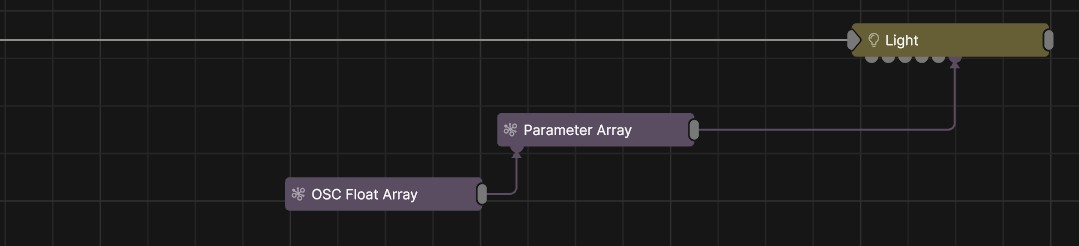
Practically, there are two main uses/advantages to using this node:
Setting multiple parameters on one node with one connection. This allows you to have much simpler node graphs, and work quicker when setting up many similar properties. This is really useful when you are setting up many instances of a similar control system.
Receiving many parameters from an external tool or another software and applying them in many places in your project with less node graph connections.
This node can receive a float array from several sources:
These will provide an array of floats, which will then be used to set the values of your custom parameters node. How the parameters are set will be defined by the JSON file that you select in the node’s properties.
The JSON file is responsible for mapping the values of the incoming float array to the node that it is connected to (via the Parameter Value Array input). The JSON file must be composed in this manner:
| Field | Type | Description |
|---|---|---|
name |
String | Human-readable label for the parameter. This must match the property name as it is displayed inside of the node’s property editor. |
index |
Integer | Zero-based position/ID that determines which element of the input array will be mapped to the associated parameter. |
scale |
Float | Multiplier applied to the parameter’s value |
offset |
Float | Value added after scaling |
The JSON file will allow you to define the name and index of the parameter, and apply a scale and an offset to the numerical value that are coming in via the array. When you connect this node to the Parameter Value Array input of another node, the properties that have names that match the names in your json file will be set to the float value at the specified index in the float array.
Here is an example json file that could be used to map the parameters of a light:
{
  "parameters": [
    {
      "name": "Brightness",
      "index": 0,
      "scale": 1,
      "offset": 0
    },
    {
      "name": "Position X",
      "index": 1
    },
    {
      "name": "Rotation Heading",
      "index": 2,
      "scale": 1,
      "offset": 45
    },
    {
      "name": "Scattering Intensity",
      "index": 3
    },
    {
      "name": "Colour R",
      "index": 4
    },
    {
      "name": "Colour G",
      "index": 5
    },
    {
      "name": "Colour B",
      "index": 6
    }
  ]
}
When fed with a 6 value Float Array, the properties of the light will be set to values of the float array at the indices defined in the JSON. This allows you to set many properties in this light at a time with just one connection.
When fed by an OSC Float Array you can quickly scale this up to control many lights from an external software with just one OSC address.
The Parameter Array node has an offset parameter and a maximum size, which can be used to split arrays up, or to access only part of an array. This can be useful for receiving large amounts of data from one source. In the example above, by using Parameter Array nodes with different offsets, you can take control of several lights with just one array of floats.
| Parameter | Details |
|---|---|
| Max Array Size | The maximum size of the array coming into the node. Any values beyond this size limit will be truncated. |
| Index Offset | Determines where in the incoming array the first value will be read form. |
| Array | A read only value. |
| JSON | Select the JSON file which determines how the incoming float values will be mapped to the parameters. |
The properties control the time at which the node is active. See Timeline for editing time segments.
| Parameter | Details |
|---|---|
| Duration |
Control the duration of the node’s time segment.
|
| Node Time | The custom start and end time for the node. |
| Duration (Timecode) | The length of the node’s time segment (in time). |
| Duration (Frames) | The length of the node’s time segment (in frames). |
| Time Segment Enabled | Set whether the node’s time segment is enabled or not in the Timeline. |
| Name | Description | Typical Input |
|---|---|---|
| Float Array | The Float Array that will be used to set the parameters as defined by the JSOn script. | Float Array |
| Parameter Value Array | Used to set the parameters of the node using an array. | Parameter Array |