

Custom Parameters Node
Updated: 22 Jun 2026
Takes values from float arrays to create of Custom Parameters.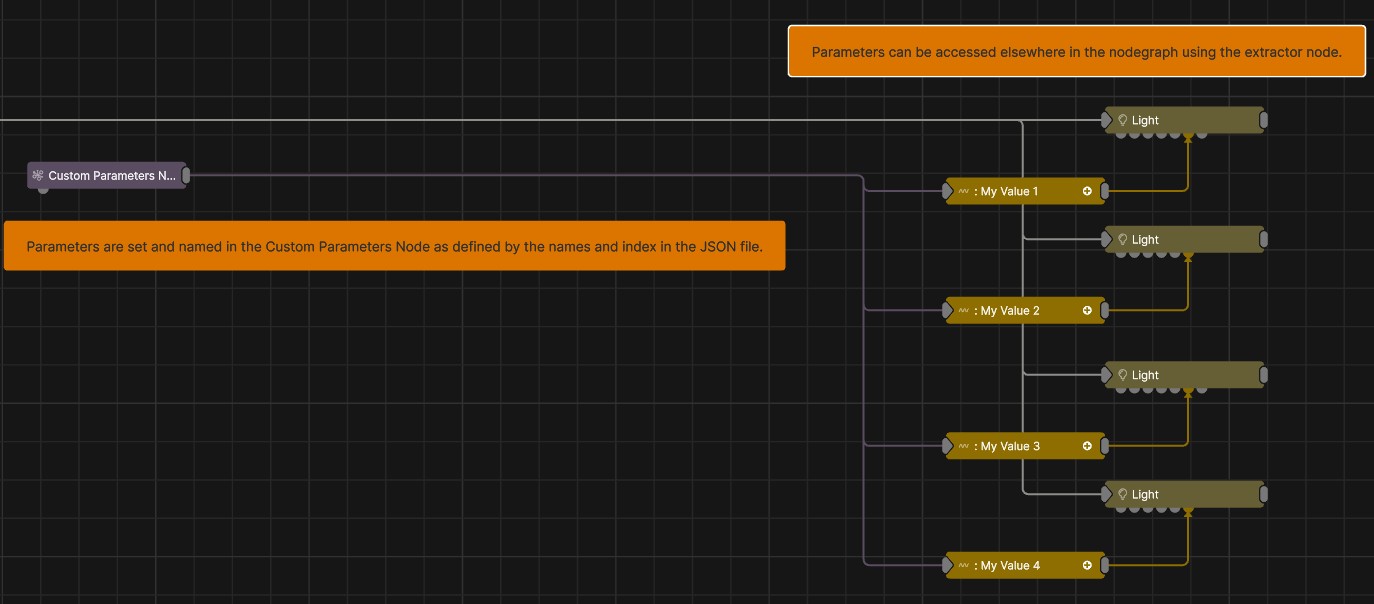
Updated: 22 Jun 2026
Takes values from float arrays to create of Custom Parameters.
The Custom Parameters node lets you take in a collection of float values in the form of a Float Array, and use them to create your own custom properties, with names that you assign yourself.
The creation of the parameters and how they are assigned to incoming values is configured via a JSON file which is selected in the node’s properties.
Creating your own parameters with custom names lets you create your own collection of named float values, that all sit within one node. The values can then essentially be used throughout your project like a global variable.
The individual custom parameters can be accessed from this node via the Extractor node.
This node can receive a float array from one of three sources:
These will provide an array of floats, which will then be used to set the values of your custom parameters node. How the parameters are set will be defined by the JSON file that you select in the node’s properties.
The JSON file is responsible for mapping the values of the incoming float array to the custom parameters that are defined within it. The JSON file must be composed in this manner:
| Field | Type | Description |
|---|---|---|
name |
String | This is the name that you want to call your custom parameter. |
index |
Integer | Zero-based position/ID that determines which element of the input array will be mapped to the associated parameter. |
This process is much the same, but rather than setting properties on nodes that already exist, you can create your own collection of named float properties that all live inside one node. These values can then be used elsewhere and extracted with the Extractor Node.
Working in this way can let you keep all of your most important values inside of one node, which can help keep your node graph tidy and readable.
Using a Bridge Node in combination with this node can make a nice tidy workflow to be able to receive key, named values anywhere in your nodegraph.
{
  "parameters": [
    {
      "name": "My Value 1",
      "index": 0
    },
    {
      "name": "My Value 2",
      "index": 1
    },
    {
      "name": "My Value 3",
      "index": 2
    },
    {
      "name": "My Value 4",
      "index": 3
    }
  ]
}
| Parameter | Details |
|---|---|
| JSON | Select a JSON file that defines how the array will be mapped to parameters. |
| Name | Description | Typical Input |
|---|---|---|
| Float Array | Input a float array that will be mapped to the custom parameters. | Float Array |
| Parameter Value Array | Used to set the parameters of the node using an array. | Parameter Array |