

Network License Server
Updated: 8 May 2026
Updated: 8 May 2026
Codemeter License Server provides network wide access to the following products without the requirement for physical dongles in workstations or nodes.
A Codemeter dongle containing the licenses is connected to the License Server, and the workstations / nodes connect to the License Server over the network to access the licenses.
To setup the license server, first ensure you have activated your licensing dongle as per email instructions.
When you define network settings, in some cases, this requires the restart of the CodeMeter service. After you specified the settings you are able to stop and then restart the CodeMeter service in CodeMeter Control Center.
On the server:
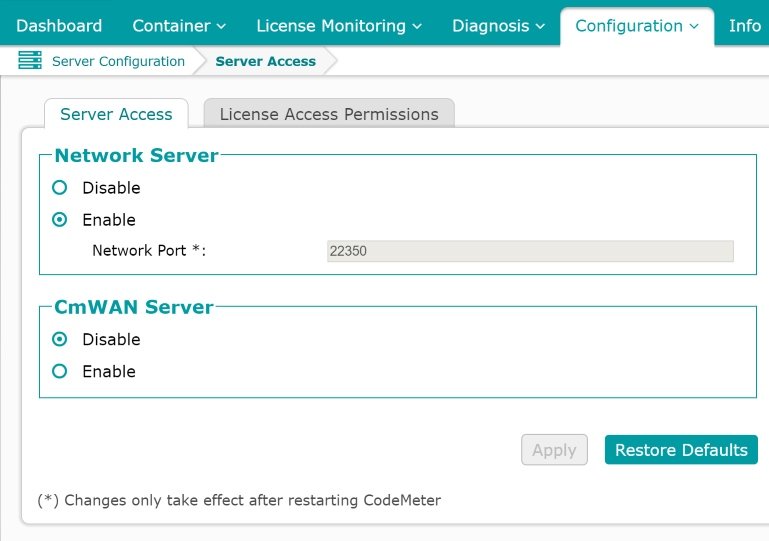
Important: Depending on your Windows OS firewall setup, you may need to manually configure TCP access to port 22350.
Win + R, type wf.msc, and hit Enter.22350 in Specific local ports → Next.Codemeter License Server TCP) → Finish.netsh advfirewall firewall add rule name="Codemeter License Server TCP" protocol=TCP dir=in localport=22350 action=allow
Each workstation or node that requires access to the licenses will need to have the CodeMeter User Runtime for Windows installed on it.
Once this is installed, run NotchLC APT on the workstation or node. The software will automatically search for the License Server (via a 255.255.255.255 UDP broadcast) and connect to it.
In more complex network topologies, you may need to directly specify the IP address of the Network License Server. See instructions below for more details.
The latest version of Notch Builder includes Codemeter Runtimes that will search for the License Server (via a 255.255.255.255 UDP broadcast) and automatically retrieve the licenses. Simply download and install the latest version of Notch Builder and run the software:
NotchRenderNode.exeNotchRenderNodeCLI.exeIn more complex network topologies, you may need to directly specify the IP address of the Network License Server. See instructions below for more details.
In some cases, you may need to manually specify the IP address of the Network License Server on the workstation / node. This is common in complex network topologies where UDP broadcast may not be possible.
There are three ways to specify the IP address of the License Server: UI, Registry, or Server.ini file.
On the workstation / node:
The Server Search List is stored on a workstation / node in the registry under the following key:
HKEY_LOCAL_MACHINE\SOFTWARE\WIBU-SYSTEMS\CodeMeter\Server\CurrentVersion\ServerSearchList\Server1
with a REG_SZ value of Address set to the IP address of the server.
You can script the addition of this registry key using the following command, substituting <YourLicenseServerIP> with the IP address of your license server.:
Command Prompt (as Administrator):
REG ADD "HKLM\SOFTWARE\WIBU-SYSTEMS\CodeMeter\Server\CurrentVersion\ServerSearchList\Server1" /v Address /t REG_SZ /d "<YourLicenseServerIP>" /f
net stop "CodeMeter Runtime Server"
net start "CodeMeter Runtime Server"
Powershell (as Administrator):
New-Item -Path "HKLM:\SOFTWARE\WIBU-SYSTEMS\CodeMeter\Server\CurrentVersion\ServerSearchList\Server1" -Force
Set-ItemProperty -Path "HKLM:\SOFTWARE\WIBU-SYSTEMS\CodeMeter\Server\CurrentVersion\ServerSearchList\Server1" -Name "Address" -Value "<YourLicenseServerIP>"
Restart-Service -Name "CodeMeter Runtime Server"
On the workstation / node set the Server.ini file in the following location:
%Program Files%\CodeMeter\Runtime\bin
With the content of Server.ini being:
[ServerSearchList]

[ServerSearchList\Server1]
Address=<YourLicenseServerIP>