Dongle Based Licenses (RFX)
Updated: 21 Apr 2026
Applies only to: RFX
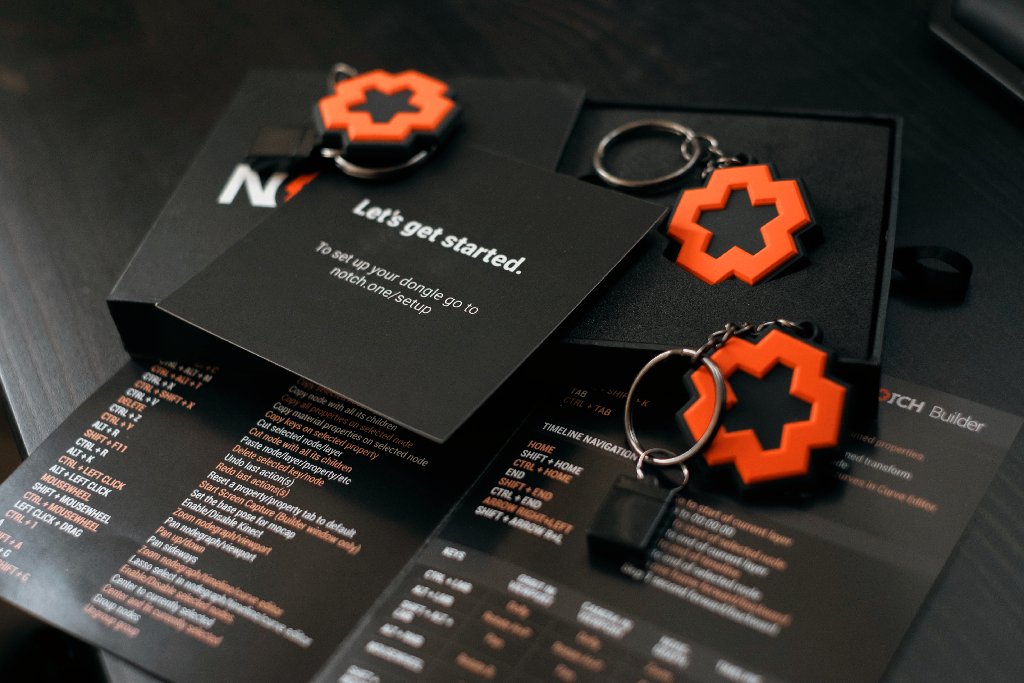
Notch RFX is available as a dongle based license that is portable and can be used on any PC, whether offline or online, making it ideal for AV professionals on the move.
RFX requires a Codemeter USB dongle. These come bundled with RFX Annual subscription purchases or can be purchased separately for monthly subscriptions.
Key things to know
#
- At the time of purchase (or after), the purchaser assigns the RFX subscription to a specific user (this may be themselves). This is the user who will apply the RFX subscription to a dongle.
- The assigned user opens Notch Launcher and applies the subscription to a Codemeter USB dongle just once. After this, the dongle will phone-home to receive any license updates/renewals.
- Each Codemeter USB dongle has a unique serial number. You can find this serial number laser etched into the USB plug or by looking in Notch Launcher.
Using your newly purchased RFX license
#
Once you’ve purchased your RFX license:
- Ensure you have assigned the license to yourself or the relevant user in your account under ‘Subscriptions’.
- Download and install the latest 1.0/2026.1 installer.
- Insert the Codemeter USB dongle that you wish to activate your RFX subscription on.
- Open Notch Launcher and login with your Notch account (if not already logged in) - then wait 10 seconds.
- Open the Licenses tab where you will see your new RFX subscription with the status of Available. Click
Activate. 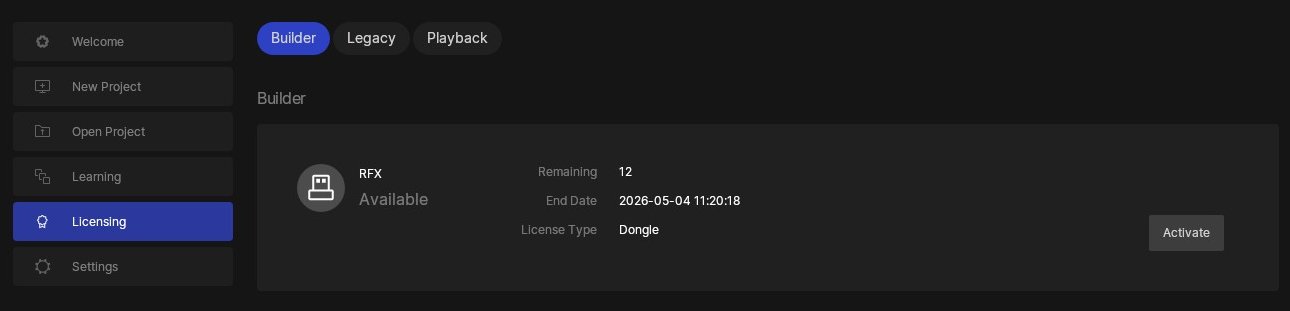
- In the pop-up, click
Activate next to the Codemeter Dongle serial number that you wish to activate on. The process may take up to 30 seconds. 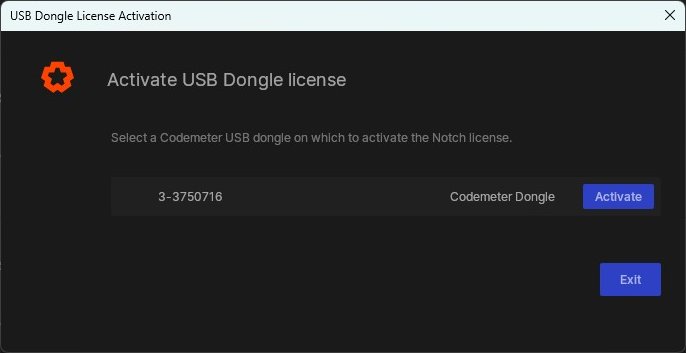
- The subscription is now active and able to be used.
Working offline
#
You can work offline with your RFX license without any restrictions.
Precedence of licensing when you have multiple types of licenses
#
The highest precedence license type will be used by Notch Builder when you have multiple types of licenses available to you. The precedence order is as follows:
- RFX (dongle based)
- Software based licenses (Trial, Indie, VFX)
FAQs
#
I am offline and Notch Launcher is telling me to login, despite only being offline for a few days. What do I do? #
Try running the Notch Builder executable (related to your license) directly. i.e.:
C:\Program Files\Notch 1.0\NotchRFX.exe
When does the dongle phone home? #
The dongle will phone home periodically and when you open Notch Launcher while connected to the internet. If you want to force the phone home, simply start Launcher and wait 10-30 seconds.
Can I use any Codemeter dongle? #
In general, yes, you can use any Codemeter USB dongle, including ones you’ve purchased previously for PLE, Base, Pro or any of our Playback products.
You just need to ensure that the serial number of the dongle starts with a 3- i.e. 3-9999999. If your dongle starts with a 2- then it is unfortunately too old to use with Notch.

