Notch for After Effects (Beta)
Updated: 20 Mar 2026
Updated: 20 Mar 2026
Please note the Notch for After Effects plugin is currently in public beta. It is not recommended for critical production use at this time.
VFX Blocks allow you to embed, manipulate and render your Notch content directly in DCCs (Digital Content Creation tools) such as Adobe After Effects. VFX Blocks are also able to take video/image inputs from the After Effects composition and use them as a video/image input into the block, opening a huge range of effects and 3D workflows directly in After Effects.
This allows:
Please note VFX Blocks (.vfxblockfiles) are distinct from Notch Blocks for Media Servers (.dfxdllfiles). Only VFX Blocks can be used in the Adobe After Effects plugin.
Notch VFX & RFX can export any project to the VFX Block format (.vfxblock). Before exporting you can Expose VFX Parameters that can be controlled within After Effects.
The Notch developed AE plugin lets you import a VFX Block, manipulate its exposed parameters, and render the Notch content directly in After Effects.
Unlike Notch Blocks for Media Servers, VFX Blocks do not require a Playback license. Instead only a plugin license is required.
Download 1.1.0.074
The Notch for After Effects plugin works by importing Notch VFX Blocks which have been exported from Notch Builder. You can either work with existing VFX Blocks that have already been exported form Notch Builder, or export your own VFX Blocks from Notch Builder.
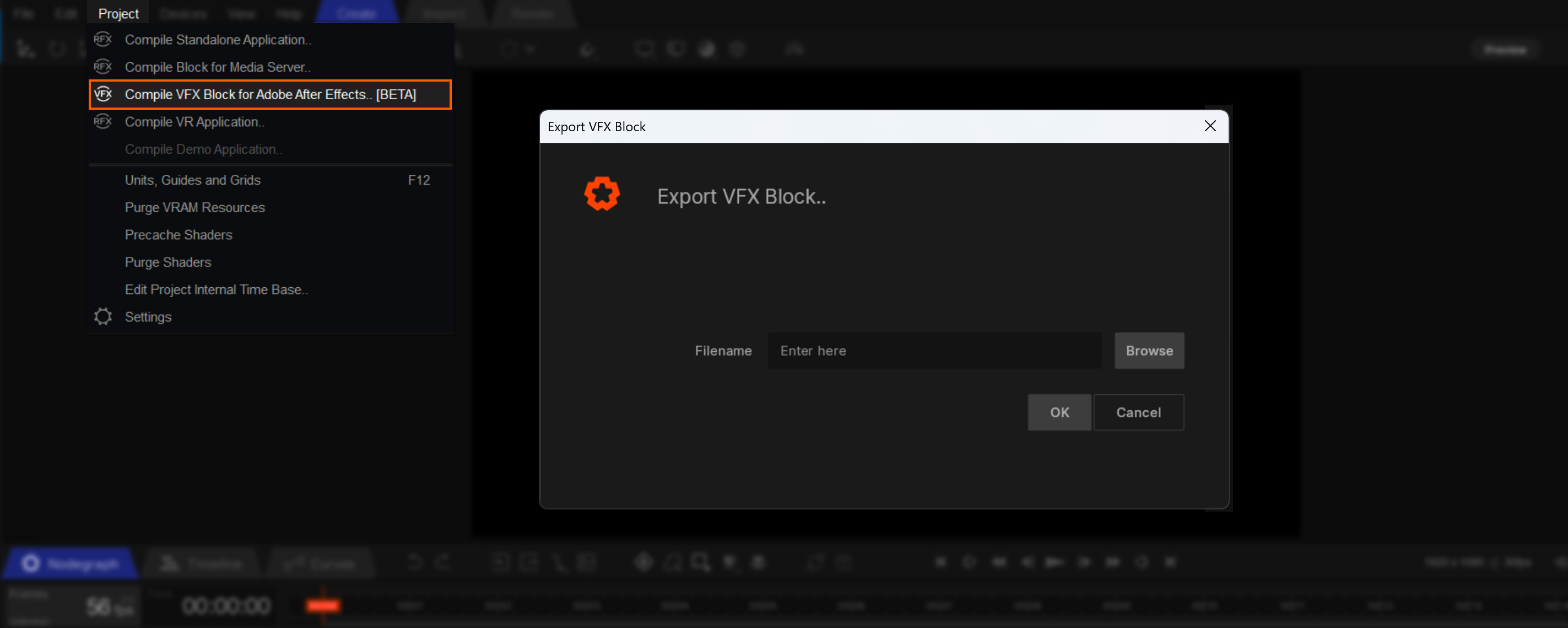
To export a VFX Block from Builder:
To enable After Effects to playback VFX Blocks, you will first need to install the Notch for After Effects plugin which can be downloaded here: https://www.notch.one/downloads.
Download the link and install the plugin. You should make sure After Effects is not running before installation.
Once the plugin is installed:
.vfxblockYou now have a Notch VFX Block loaded into After Effects.
When exporting a VFX Block from Notch Builder, you can expose VFX Parameters to be available directly inside of After Effects, allowing you to have dynamic control over a pre-defined set of Notch node properties.
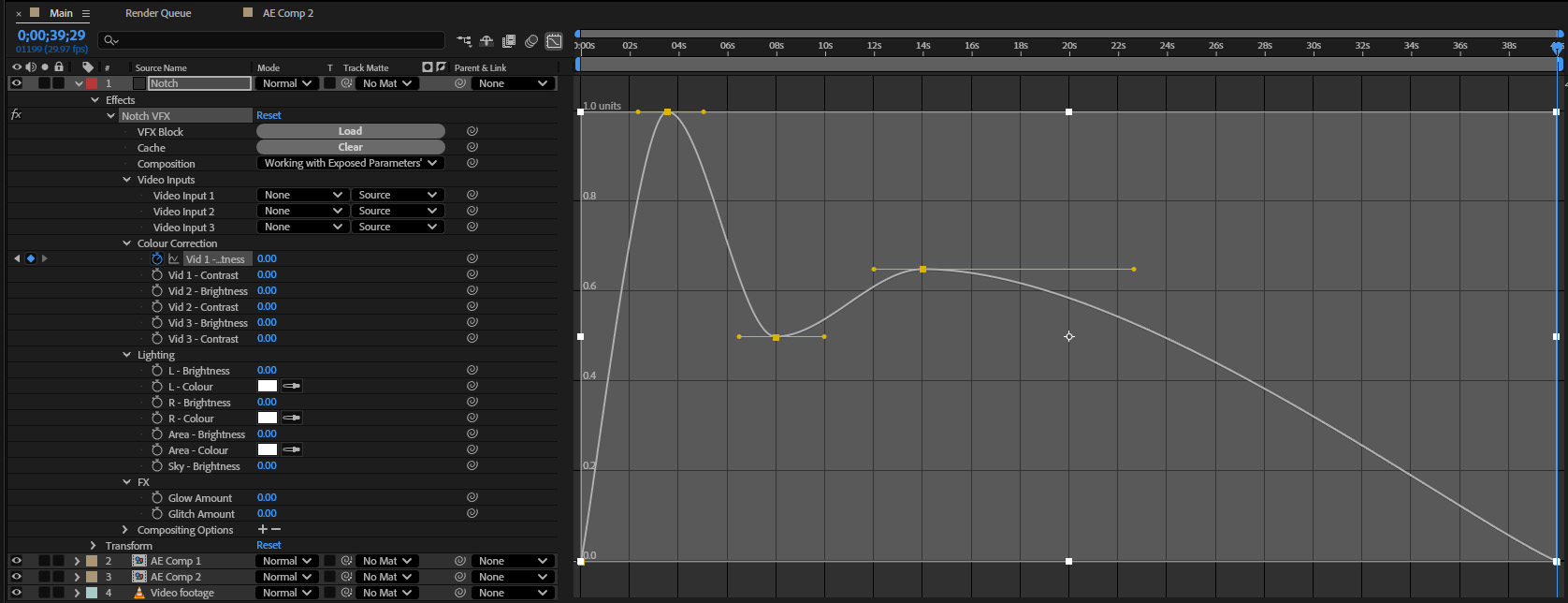
Once you have a Notch VFX Block loaded into your After Effects project, you will be able to see the exposed VFX parameters for the active Notch composition, either in the ”Effects Controls” menu, or in the Notch layer’s ”Effects” drop-down in the ”Layers” section of the ”Timeline panel”.
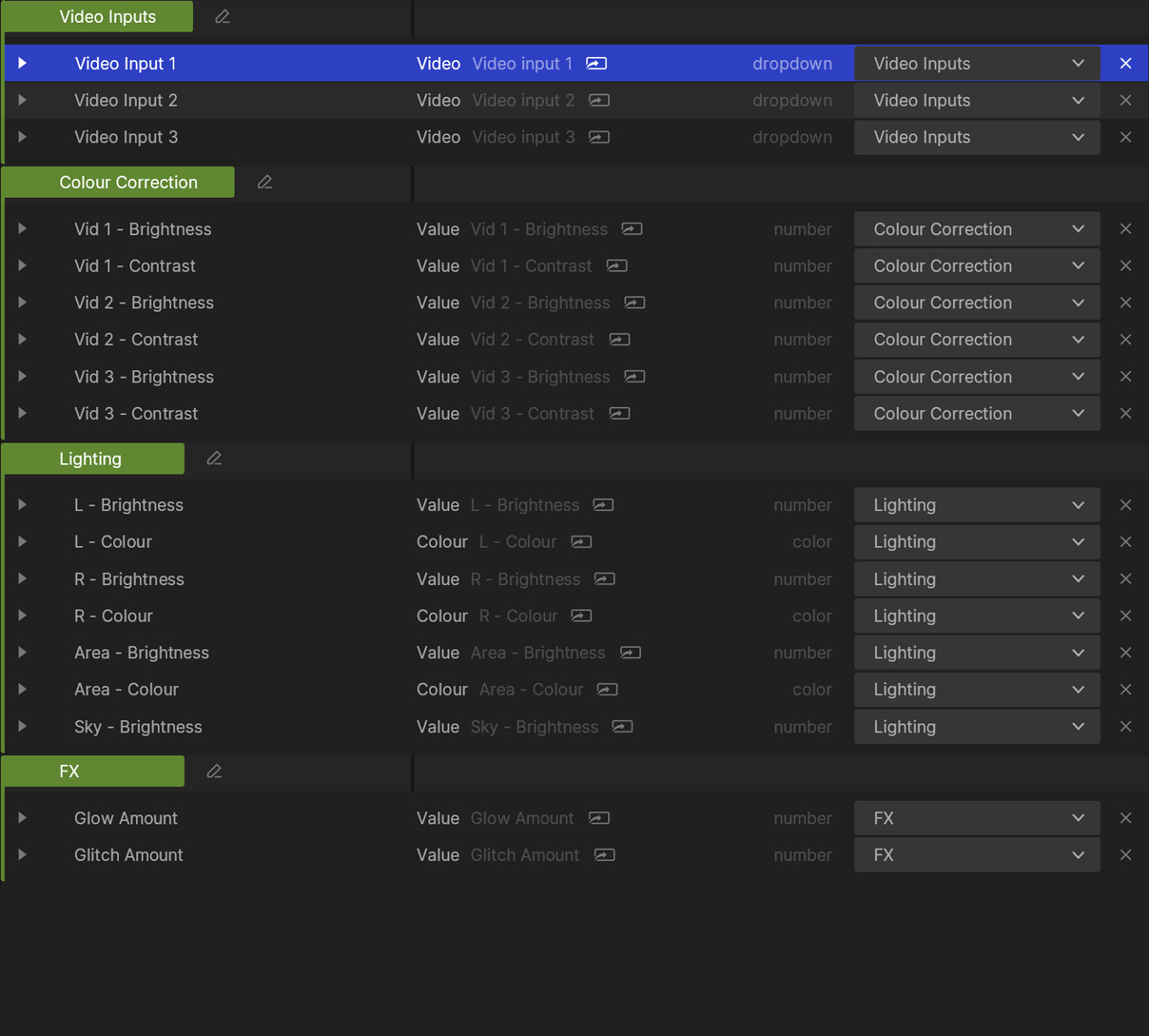
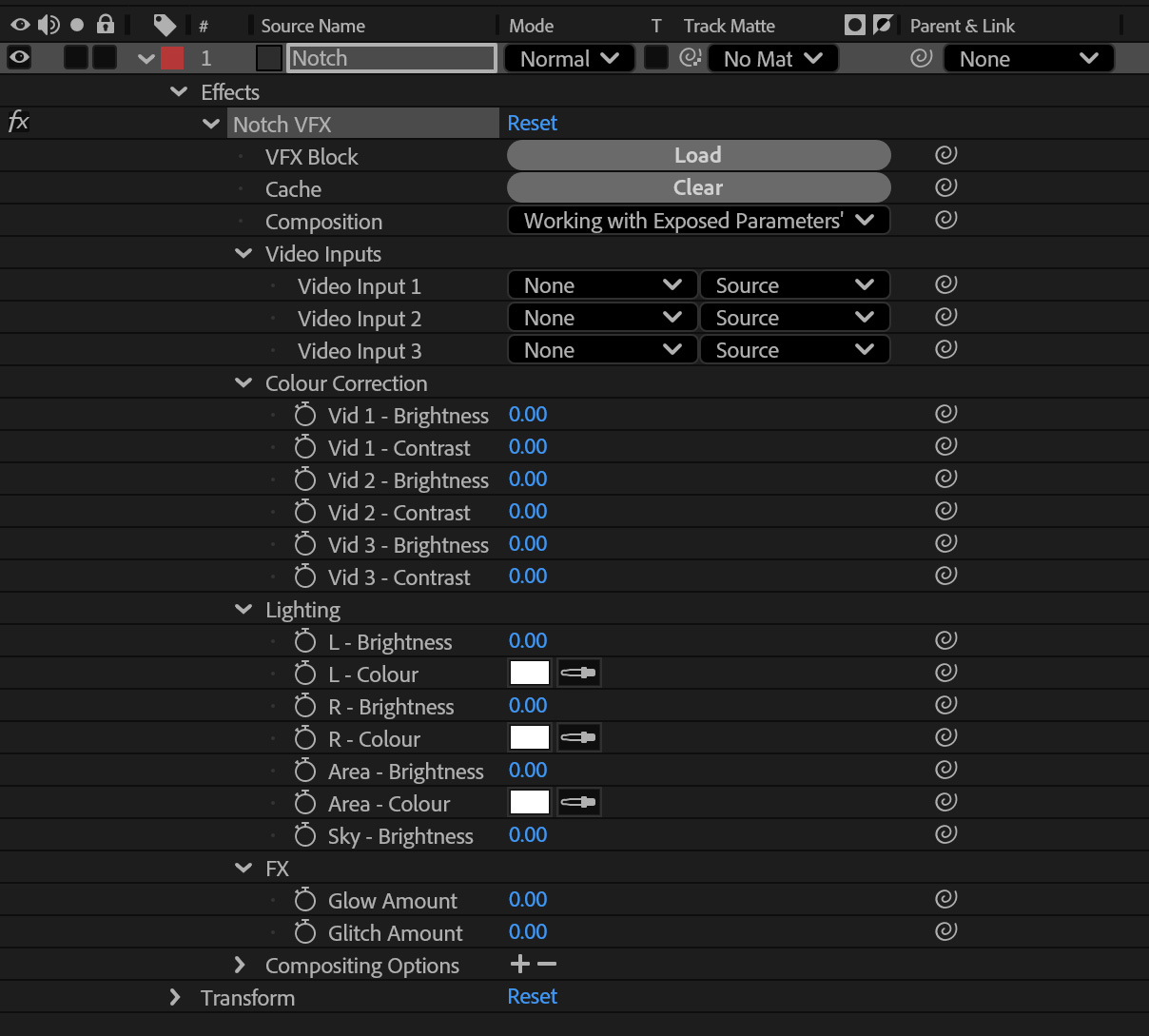
Notch allows you to expose the source of a Video Loader node to be set inside After Effects. This allows you to feed in video, images and other After Effects compositions in to your notch scene from within After Effects. This can be used in various ways, a few examples might be to map AE compositions onto screens in a 3D stage visualisation setup, or you could use it to apply Notch Post-FX to an AE composition or animation.
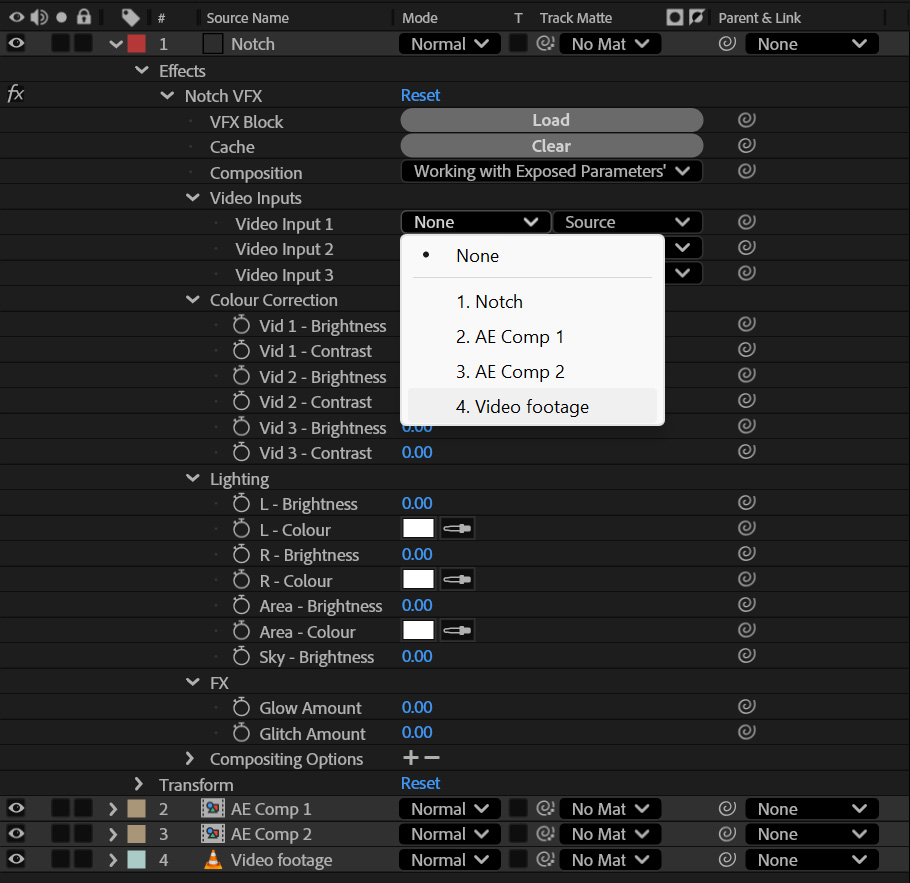
To use an Exposed Video Parameter, you must first have a suitable source added to your composition alongside the Notch layer. In this example we will use a video file, but this could be an image or another AE composition.
If you click on the dropdown for the Exposed Video Parameter in the ”Notch VFX” properties, you will see all of the layers in the current AE composition. Selecting one of these will set the feed of that Exposed Video Parameter to use that layer as its source.
The source of a Exposed Video Parameter can cannot be animated. If you want to animate the texture being sent to a Exposed Video Parameter , you could set the source to an AE composition, and then animate videos, images etc inside that comp.
As well as exposing video sources, you can also expose the following property types:
These parameters can be controlled in the same way as standard After Effects parameters. You can set them statically, keyframe them, or apply expressions to them.