Overlays
Updated: 28 Mar 2026
Updated: 28 Mar 2026
These options can help you control what UI elements you see in the viewport. Guides can be useful for guiding your composition, and can even be used to snap objects to certain positions in view space.
| Label | Description |
|---|---|
| Handles | When enabled, the Viewport Handles used to transform an object will be shown in the viewport when an object is selected. |
| Ranges | When enabled, the Ranges for some effects will be shown in the viewport. |
| Bounding Boxes | When enabled, the Bounding Box of a node will be shown. |
| Bounding Boxes For All Nodes | When enabled, all the ranges and bounding boxes for all nodes will be shown. |
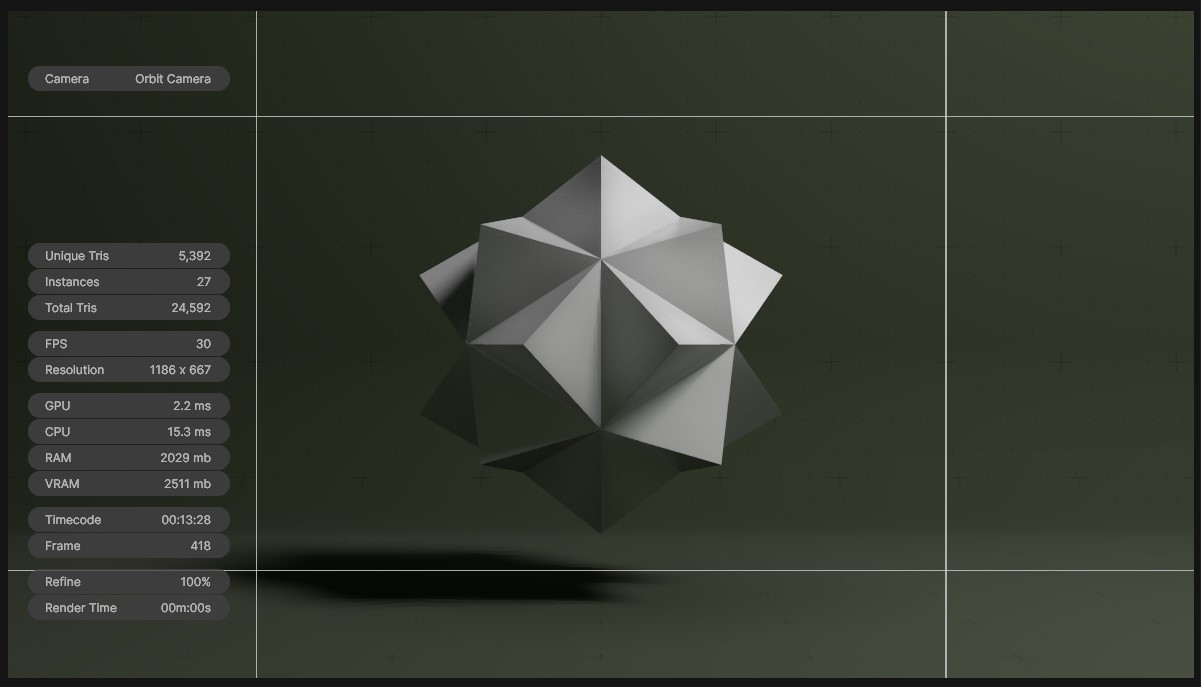
The Viewport HUD adds a Viewport indicator show the current FPS and various pieces of meta data about the scene to the viewport. Some notable features:
Each of these has a different impact on performance depending on circumstances.
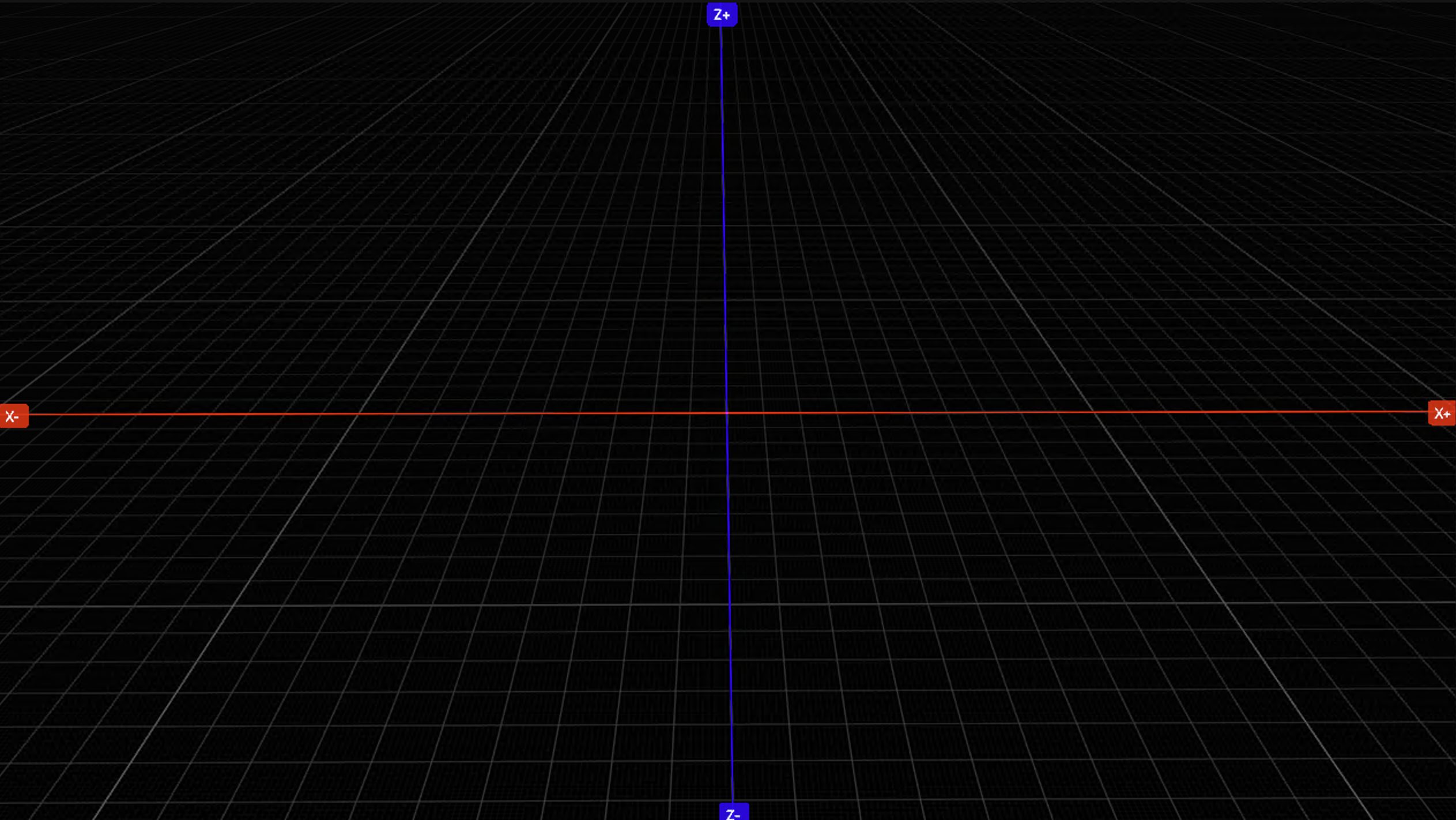
The viewport grid provides a frame of reference for content creation in Notch Builder.
The viewport can be toggled on/off with Alt + G
By default, the grid is set to a coarse spacing (darker lines) of 0.5 units, and a fine spacing (lighter lines) of 0.05 units. The grid can be customized from the Projects Settings > Units Grids & Guides > Units menu.
When using modify tools, holding the Shift key will enable snapping.