

Resources Panel
Updated: 3 Mar 2026
Updated: 3 Mar 2026
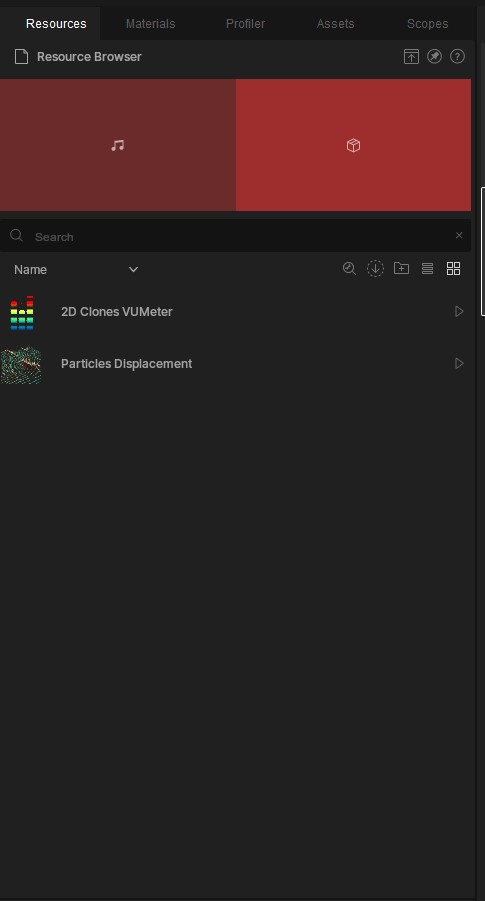
Contains all the resources used by Notch in the current scene.
Resources are all the custom models, sounds, fonts, or images that can be imported into Notch. To import a file, right-click in the resources window, select the file type, and select the file from your chosen folder. If it’s compatible, it will appear in the resources window. The left side of the window shows the name of the resource, while the right side shows other details like file type, contained materials, and resolution, depending on the type of resource.
By default, most media types will be copied and saved with the project file. This is called embedding the resource. However, with video files and other large files, Notch will instead only remember their path location, so moving or deleting the file will lose the connection, and it will need to be reloaded or re-imported.
When exporting a Notch Block or Standalone Project, files that are embedded in the project will be packaged in the export. Therefore, it is important to be aware of what is and isn’t embedded in your project, especially when moving PCs or exporting files.
Files which cannot be found appear in red. They can be re-found by right-clicking on the missing file and choosing Find Missing Resources. Then select a directory to search.
Files can be set to reflect changes, or not to reflect changes. This means that if the file that is being referenced inside Notch is edited or overwritten, Notch will automatically reload the resource to reflect the changes. This is again controlled via the RMB menu.
For information on which file types are supported, check out the Supported Formats section on the Features page on our website.
| Label | Description |
|---|---|
| Toggle Preview | Will open a small panel to show previews of resources when they are selected from the resource list. |
| Undock | Undock this panel and place it somewhere else. For more, see our User Interface Page. |
| Help | Takes you to the manual page for this panel. Perhaps that’s how you got here? |
| Search | Filter the list to find a specific Asset in the list. |
| Open In Inspector | Opens the resource for editing inside the Inspector. |
| Import Resource | Opens a file browser to import a resource. |
| Create Folder | Creates a new folder in your resources. Right-hand click and select Rename Folder to rename it. |
| Details View | Sets your resource browser to display resource details only (no thumbnails). |
| Thumbnails View | Sets your resource browser to display thumbnails next to resources. |
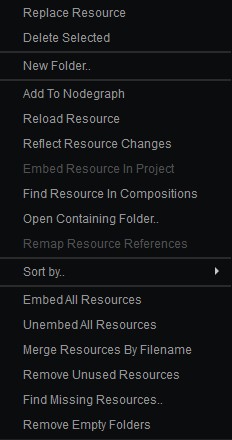
| Label | Description |
|---|---|
| Replace Resource | This will open a file browser where you can choose a file to replace the selected file with. |
| Delete Selected | Deletes the selected resource. |
| New Folder | Creates a new folder. |
| Add To Nodegraph | Adds the currently selected resource to your nodegraph. |
| Reload Resource | Reloads this resource. This will update the resource inside Notch if any changes have been made to the file. |
| Reflect Resource Changes | When enabled, if the file that is being referenced inside Notch is edited or overwritten, Notch will automatically reload the resource to reflect the changes. |
| Embed Resource In Project | The resource will be copied, exported, and saved with the project file. |
| Find Resource in Compositions | This will select the node using this resource in the composition. Press A to centre your nodegraph on this node after it is selected. |
| Open Containing Folder | Opens the folder where the resource is contained inside Windows. |
| Sort By | Sort your resources. |
| Embed All Resources | Embeds all resources in a project. With large numbers or sizes of resources, this may take a moment. |
| Unembed All Resources | Unembeds all resources in a project. With large numbers or sizes of resources, this may take a moment. |
| Merge Resources by Filename | Removes duplicate resources by merging any resources that have matching file names. |
| Remove Unused Resources | Good for tidying up projects. |
| Find Missing Resources | Lets you re-locate missing resources by selecting a folder to search through. |
| Remove Empty Folders | Good for tidying up projects. |