Preferences
Updated: 3 Mar 2026
Access this panel from Edit -> Preferences. This window is used to customise a number of Notch Builder preferences. Some of the settings only apply when Builder is restarted.
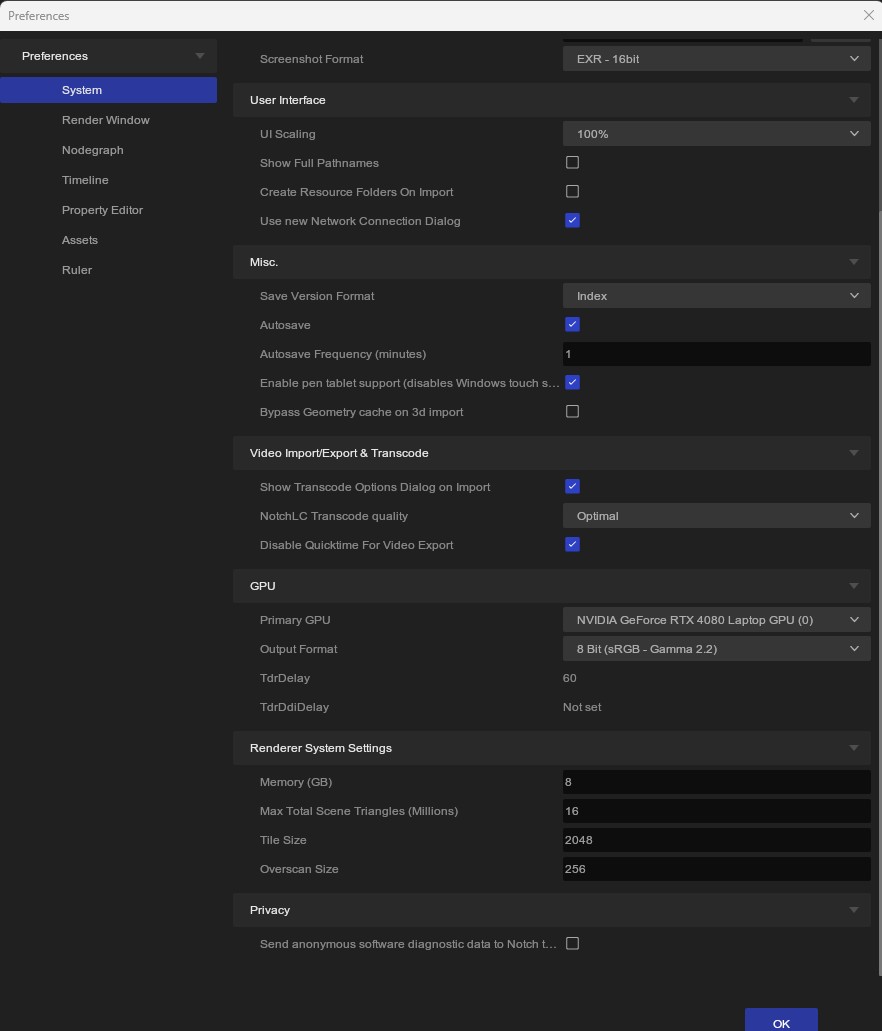
System
#
Creator
#
| Label |
Description |
| Creator Name |
The name of the person or company that should be associated with the content created in this instance of Notch Builder. The information is saved in the .dfx project file and can be seen in the Creators section of the Root node. |
Paths
#
| Label |
Description |
| Cache |
The path to the cache directory which stores cache data, such as projects and resources. |
Screenshots
#
| Label |
Description |
| Screenshots |
The path to save screenshots to. |
| Screenshot Format |
The file format to be used for screenshots. |
User Interface
#
| Label |
Description |
| UI Scaling |
Scale the UI, set in percentage. |
| Show Full Pathnames |
Shows full pathnames in Notch. |
| Create Resource Folders on Import |
Creates folders for resources when importing. |
Misc
#
| Label |
Description |
| Save Version Format |
The format of suffixes that will be added when using the save version function (Ctrl + Alt + S). |
| Autosave |
Enables autosave functionality and allows for customising the frequency of backup saves. |
| Autosave Frequency |
Determines the time interval between autosaves (in minutes). |
| Enable Pen Tablet Support |
Improves Pen Tablet / Pen Display support by disabling Windows touch, and therefore avoiding any conflicts between the two input methods. |
| Bypass Geometry Cache on 3D Import |
Prevents geometry files being saved to a cache when imported. Disabling will reduce cache size but will increase file load times. |
Video Import/Export & Transcode
#
| Label |
Description |
| Show Transcode Options Dialog on Import |
Videos that cannot be played back natively in Notch will be transcoded on import. This setting opens the dialog for import settings on import. |
| Notch LC Transcode Quality |
Sets the default quality of the resulting NotchLC files from transcode. |
| Disable QuickTime for Video Export |
This setting can resolve issues where Notch freezes or crashes during rendering, particularly on Windows 11, due to conflicts with the deprecated 32-bit QuickTime SDK. |
GPU
#
| Label |
Description |
| Primary GPU |
The GPU allocated to Notch for rendering. Particularly useful when your machine contains > 1 GPU. |
| Output Format |
Set the output bit depth and colour space. |
| TdrDelay |
Read only - shows your TdrDelay. This is configured in your PC’s registry. Increasing this can help with large render jobs |
| TdrDdiDelay |
Read only - shows your TdrDdiDelay. This is configured in your PC’s registry. |
Render System Settings
#
| Label |
Description |
| Memory (GB) |
The amount of memory to allocate to the Render System. |
| Max Total Scene Triangles (Millions) |
The total amount of triangles allowed in the scene. |
| Tile Size |
The size (in pixels) of the tiles to use when Tiled Rendering is enabled. |
| Overscan Size |
The size (in pixels) of the overscan applied when tiled rendering is enabled |
Privacy
#
| Label |
Description |
| Send anonymous software diagnostic data to Notch |
Enable/disable sharing of diagnostic data. |
Render Window
#
Rendering
#
| Label |
Description |
| Enable Rendering |
Enable/Diable Rendering. This setting is ueful if you have made changes to a project that cause it to crash upon opening. If you diable rendering in another project and then open your problematic gile, you can work without rendering to undo any changes that made the issue. |
| Enable GPU Hang Detection |
Log will show when the GPU has hung. |
Viewport
#
| Label |
Description |
| Enable Viewport Axis Labels |
Toggles text labels on the red, green and blue X, Y and Z axes lines in the viewport. |
Nodegraph
#
Links
#
| Label |
Description |
| Parent Linking Behaviour |
Determines behaviour when adding a new parent link to a node. Reparent will replace the existing connection. Multiparent will add to it. Reparent is default and recommended. |
Nodes
#
| Label |
Description |
| Node Colours |
Adjusts the saturation of node colours if they are too bright for you. |
| Show Hints |
Enable/Disable Hints (suggestion of other nodes when you create a node). You can always double click on an output pin to view hints. |
| Show Tooltips |
Enable/Disable descriptions when mousing over nodes/pins. |
| Show Node List Tooltips |
Enable/Disable descriptions when mousing over nodes in the node list. |
Timeline
#
Time Segments
#
| Label |
Description |
| Time Segments Disabled By Default |
Any time segments that are not pinned will not be shown when this is enabled. |
Property Editor
#
General
#
| Label |
Description |
| Reset Splitter Position |
If you’ve accidentally moved the divider in your property editor to an annoying location - this will put it back. |
| Show Tooltips |
Enable/Disable Tooltips when mousing over properties in the property editor. |
Material Nodes
#
| Label |
Description |
| Show Material Thumbnails |
Show or Hide material thumbnails inside the property editor when a material node is selected. |
Assets
#
Asset Library Paths
#
| Label |
Description |
| Library 1 Path |
Sets the folder directory for your 1st custom assets folder. See Assets |
| Library 2 Path |
Sets the folder directory for your 2nd custom assets folder. See Assets |
| Library 3 Path |
Sets the folder directory for your 3rd custom assets folder. See Assets |
Ruler
#
General
#
| Label |
Description |
| Enable Expanded View |
Adjusts the size of your time ruler. This is also configured by clicking the waveform icon on the right side of the ruler. |

