

Launcher
Updated: 9 Mar 2026
Updated: 9 Mar 2026
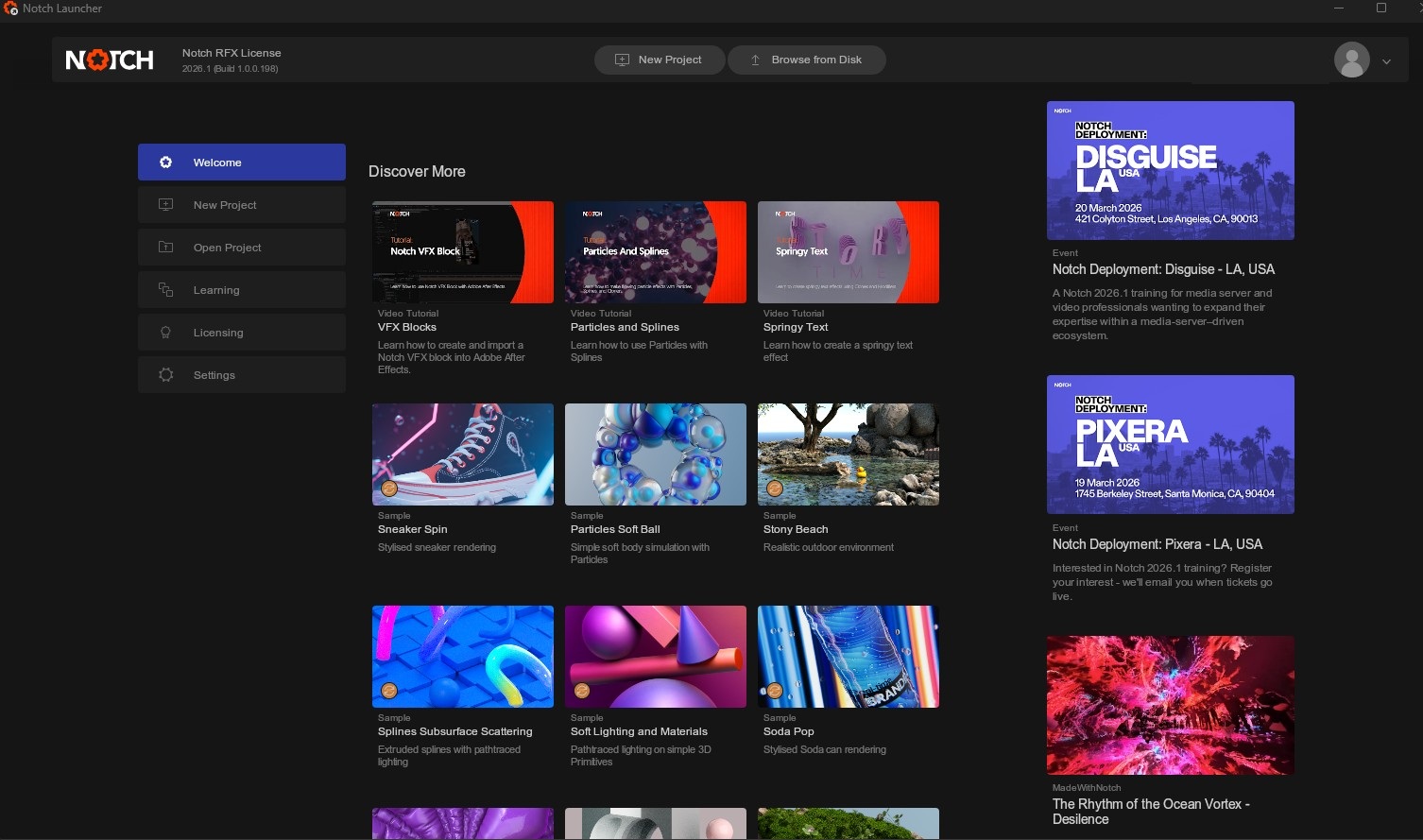
The Launcher is your home base for everything Notch. The Launcher automatically handles subscription activities such as synchronising and updating your licenses and account information. It also lets you browse and open your previous projects and create new projects from templates. There is also a large range of useful learning resources, from sample content, tutorial videos and quick tips. Additionally, you can access a whole load of Notch related news, updates and case studies.
When you first open the Notch Launcher, you will be asked to log in. To do so, click log in and then log into your Notch account inside of your browser window.
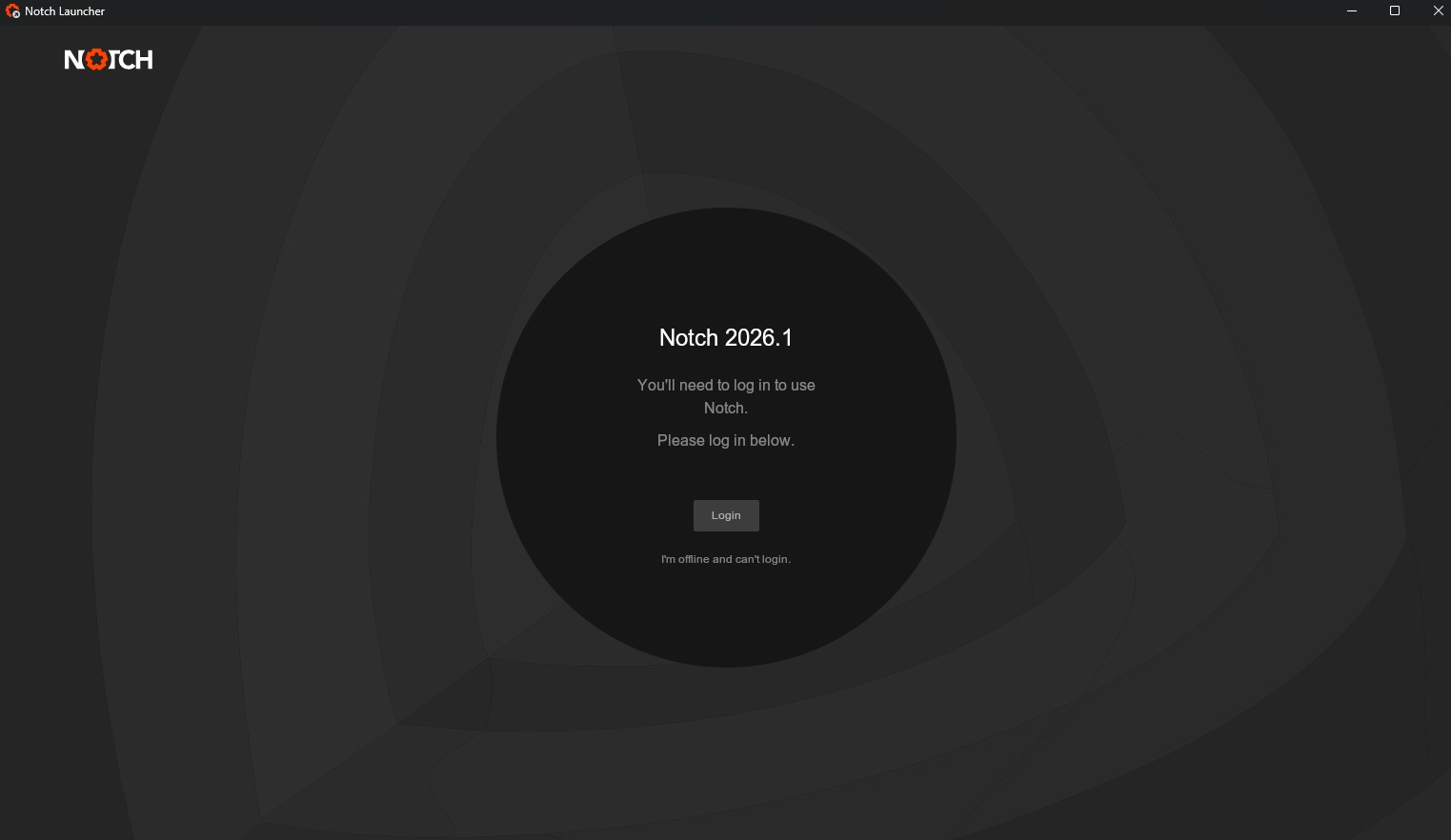
The log in process is required for handling license upgrades automatically. However, if you are offline and can’t login, you can still use the Launcher. You can do this by clicking on the text that says “I’m offline and can’t login”.
In the center of this page, you can see and navigate through your recently viewed and recently opened projects, as well as the latest content added to the Notch Launcher and case studies of projects using Notch.
On the right hand side, you can see Notch related News and Events, such as announcements for training and open houses etc.
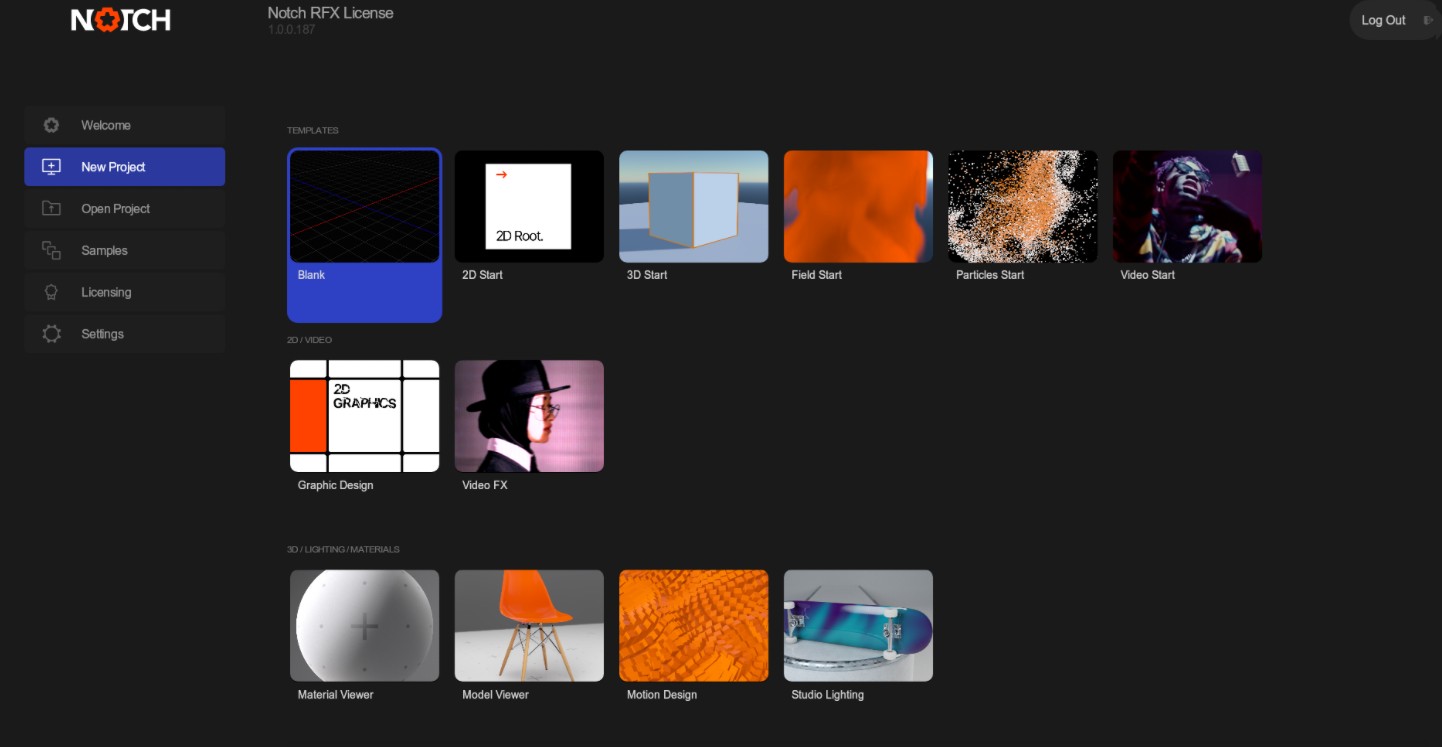
When you want to launch a new project, you can either create a blank project, or open a template. To quickly open a blank project, use the New Project button at the top of the Notch Launcher window. When launching a new project, you will see the New Project dialog open, where you can set key settings for your project.
Templates will start you off in a scene with a pre-designed setup to get you started. To open a template, go to the New Project section of Launcher and then select a template to open. Here you can find useful starting templates for working with different techniques, outputs or use cases.
You can create your own Templates by saving a .dfx project file in Notch’s Templates folder, found at: “Documents\Notch\Templates”.
Use this tab to browse and open your previously opened projects.
You can use the Browse from Disk button at the top of the window to open a file explorer window.
This is your section to access projects, tutorials, courses and tours.
Browse and open your recently viewed content
Browse and open the newest learning content added to the Notch Launcher.
Tours will open a Notch project that will show you around and get you up to speed with some of the newest and most popular features inside of Notch.
Samples and Art Comps are a great starting place to learn how to build out a wide range of projects.
Techniques are very specific examples of how to use different categories and collections of nodes inside of Notch. There’s lot of great ideas here to get you started.
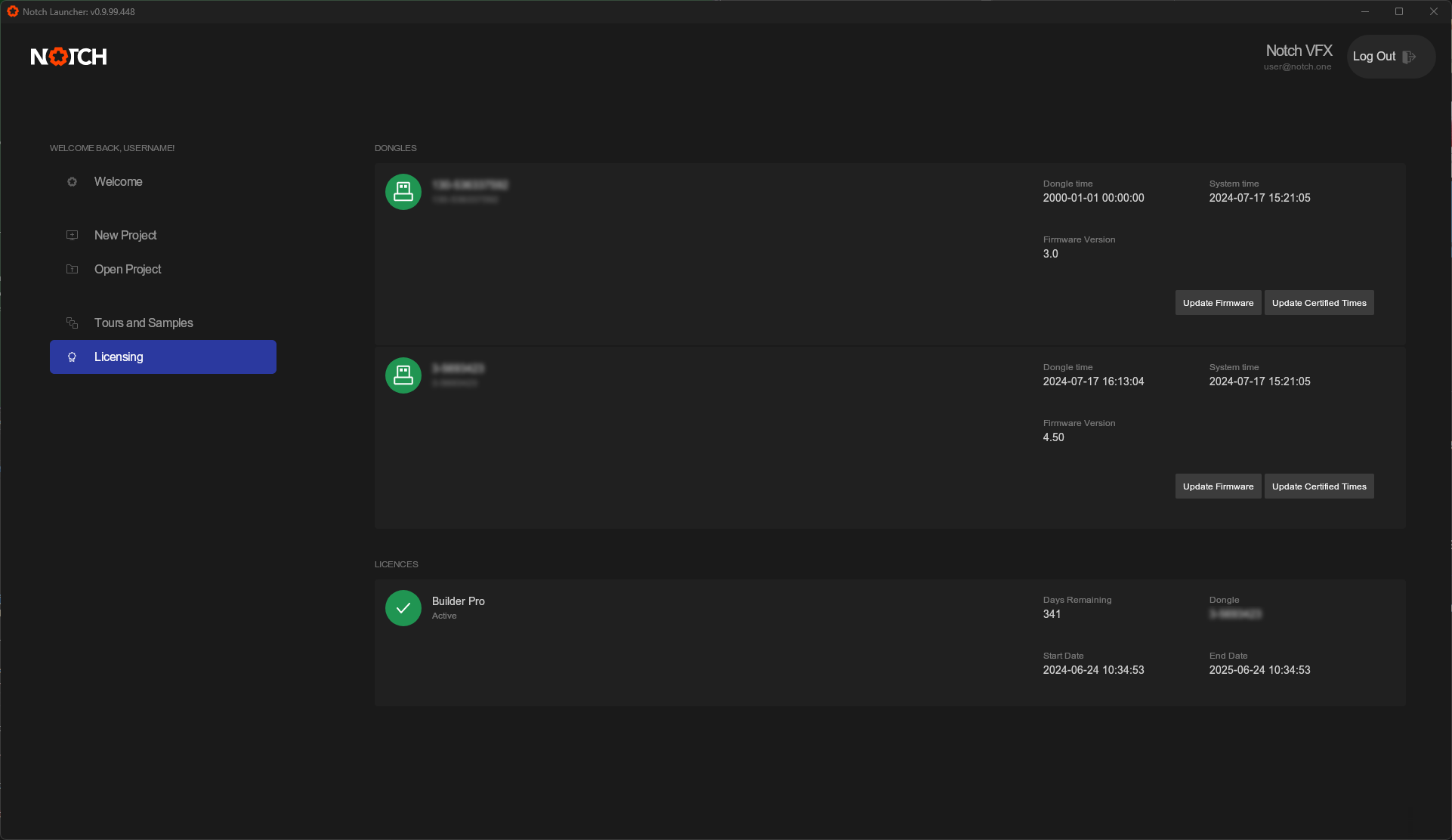
This tab is for managing any licenses you have connected to your Notch ID or Notch Dongle.
Available licenses will appear in a list. You can hit the Activate button next to a license to activate it onto your PC or USB Dongle.
Any active licenses will also be displayed inside of this screen. You can filter your currently active licenses using the Builder, Legacy and Playback buttons across the top of the page.
You will also see the Dongle ID, Days Remaining, and the start and end dates for each license.
Here you can set your:
| Label | Description |
|---|---|
| Creator Name | Set a creator name that will appear under Project Information inside of Notch |
| Clear Recent File List | Ashamed of your your recent files? Hit this button. |
| Send Diagnostic Data | Opt in to send anonymous diagnostic data to Notch to help improve the product. |
| Information | Read out of disk usage stats for Geometry Cache, Shader Cache, Cache Disk usage and Downloads Disk Usage. |