

Asset And Material Browsers
Updated: 3 Mar 2026
Updated: 3 Mar 2026
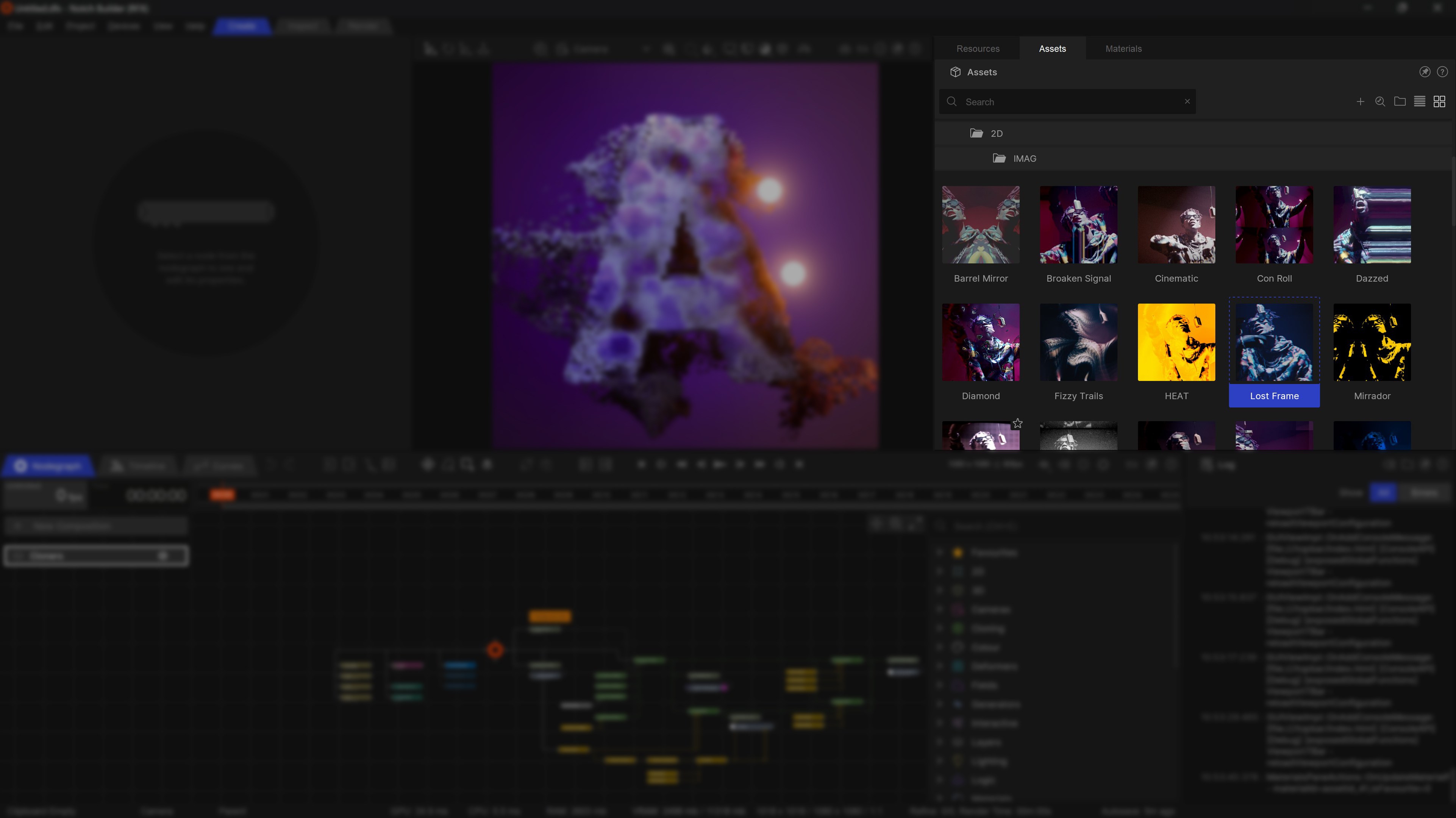
These panels allow you to browse local and online assets and add them to your scene.
For more on our Assets workflow, see our page on Building Assets
| Icon | Label | Description |
|---|---|---|
| Undock | Undock this panel and place it somewhere else. For more, see our User Interface Page. | |
| Help | Takes you to the manual page for this panel. Perhaps that’s how you got here? | |
| Search | Filter the list to find a specific Asset in the list. | |
| Add to Nodegraph | Add the currently selected Asset to the Nodegraph. | |
| Open In Inspector | Opens the resource for editing inside the Inspector | |
| Open Folder In Explorer | Opens a new file explorer window on the Assets library path. | |
| List View | Views the assets as a list, including helpful meta-data such as file size, node count, and creation date. | |
| Thumbnail View | Views the assets with large thumbnails, to make it easier to view the contents. |
Frequently used Assets can be added to a favourites list by selecting the star icon on the asset. They will then be added to the Favourites folder so they can be accessed easily later.
Store Assets are premade assets, which you can view and download. Assets can be downloaded by clicking on the download icon. Once downloaded, drag and drop the asset from the browser into the node graph. These assets are all available to you to use, customise and re-use, and contain some great techniques and useful tricks. So feel free to dig in.
Your custom asset folders, where you can save your own custom assets. By default, assets will be saved at: User\Documents\Notch\Notch Assets\Assets.
You can configure three separate asset paths from Edit -> Preferences -> Assets. the folder that you configure here will be scanned for custom assets, which will be displayed in this section.