

Face Tracker
Updated: 4 Mar 2026
Searches the supplied image or video for faces.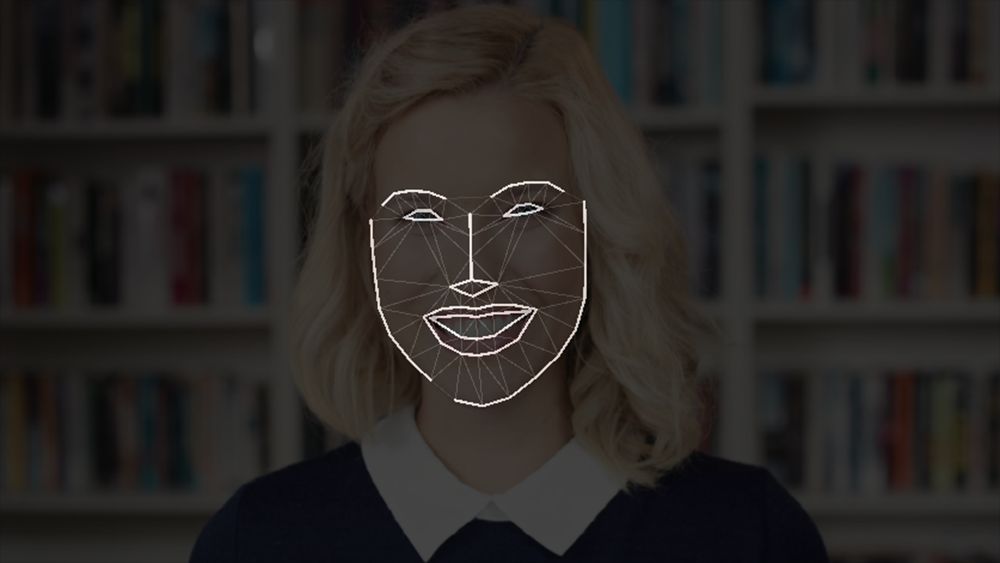
Updated: 4 Mar 2026
Searches the supplied image or video for faces.
This node searches the supplied image or video for faces. If a face is found, a mesh is generated then tracked along with the image.
This node uses the NVIDIA RTX AI based face tracking solution to generate a face mesh, and track the points between frames. This features requires an NVIDIA RTX enabled graphics card, as well as the NVIDIA AR drivers (available here). Running on the GPU, this method is far faster than the CPU based alternative and can be used with a 3D Face mesh instead of a 2D mesh.
For more information on the NVIDIA Broadcast Integration, see here
Important information for Step 2: NVIDIA 20xx (Turing), 30xx (Ampere) and 40xx (Ada) cards have different AR SDK downloads. Make sure you download the correct one for your graphics card.
You’re missing the NVIDIA Broadcast Engine AR SDK. Please download and install it.
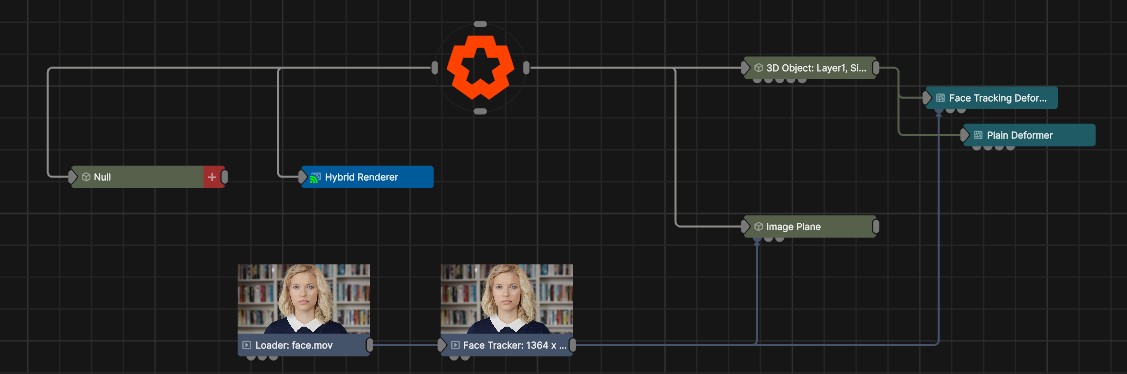
When the Face Tracking node finds a face it generates a mesh which may be used as geometry by the Face Tracking Mesh node, or used to deform a matching 3D object’s vertices using the Face Tracking Deformer node. The image output by the Face Tracking node can either pass through the original input; or output a mask from the detected face geometry in either the RGB or Alpha channels. Only one face can be detected at a time, so multi-face tracking is currently not supported.
The Face Tracker also analyses the detected face pose to determine whether the eyes and mouth are open, the positions of several key points such as the eyes, and the overall approximate rotation and scale of the face. These values are available as envelopes that can be extracted from the node via an Extractor and can, for example, be linked to Image 2D nodes in order to attach 2D images to points on the face. The Face Found envelope is set to 0 if no face is found, or 1 if there is.
To improve performance further, there is the option to downsample the input image before face detection - as this typically does not have to be processed at full resolution to find faces. Downsample Steps defines the number of downsample iterations: 1 means half width, half height and so on.
It must be noted that face tracking, while reasonably solid and robust, is not perfect. There is a degree of tolerance but care must be taken with the input feed to ensure that the algorithm is able to perform to its best. In particular:
These properties control the core behaviours of the node.
| Parameter | Details |
|---|---|
| Preview In Viewport |
Preview the generated image as an overlay in the viewport.
|
| Apply PostFX Before Alpha Image Input (Legacy) | When enabled, the alpha input image is applied after the postfx pass, overwriting any effects the postfx would have applied to the alpha channel. |
| Active | Enables or disables the effect. Disabling the effect means it will no longer compute, so disabling a node when not in use can improve performance. |
| Downsample Steps | The number of times the input image is halved in size before face detection is executed - to increase performance. |
| Frame Skips | The number of input frames that are skipped. a 60Hz feed may be processed at 30Hz to increase overall system performance. |
| Low Latency | Reduce the number of frames between processing and getting the result, at the cost of reduced overall performance. |
| Output Image Mode |
Defines the image generated by the node.
|
| Show Bounding Boxes | Render bounding boxes of detected faces on screen. |
| Reset When Face Lost | Reset the face data when a face cannot be found. |
The properties control the time at which the node is active. See Timeline for editing time segments.
| Parameter | Details |
|---|---|
| Duration |
Control the duration of the node’s time segment.
|
| Node Time | The custom start and end time for the node. |
| Duration (Timecode) | The length of the node’s time segment (in time). |
| Duration (Frames) | The length of the node’s time segment (in frames). |
| Time Segment Enabled | Set whether the node’s time segment is enabled or not in the Timeline. |
| Name | Description | Typical Input |
|---|---|---|
| Effect Mask | Mask out areas that Post-FX applied to this node won’t be applied. | Video Loader |
| Alpha Image | Use a separate video nodes luminance values to overwrite the alpha channel of the image. | Video Loader |