

Colour Curves
Updated: 28 Jan 2026
Remaps colour values using curves.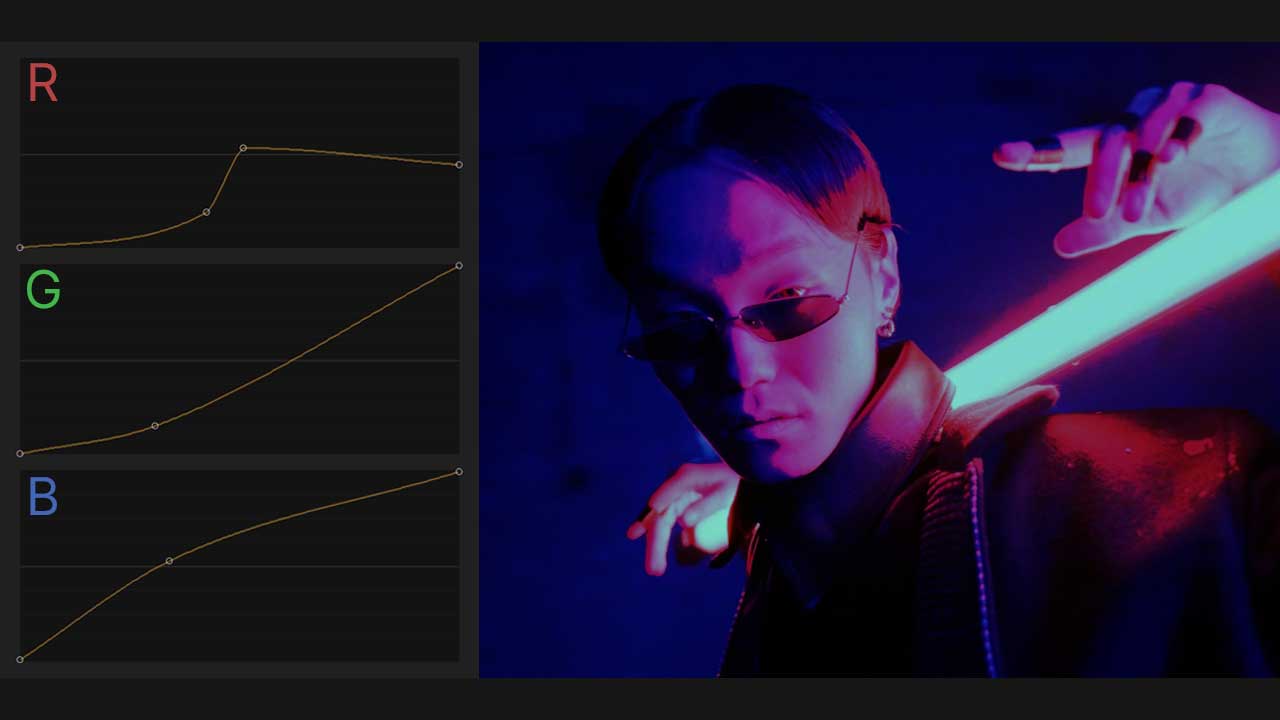
Updated: 28 Jan 2026
Remaps colour values using curves.
This node provides precise control over an image’s brightness, contrast, and colour by remapping input tonal values using editable colour curves. The master RGB curve can adjust overall shadows, midtones, and highlights while preserving colour balance, while the individual red, green, and blue curves allow for precise, per-channel colour correction and creative colour shifts.
In each curve, the horizontal axis represents input values and the vertical axis represents output values. By default, the curve is a straight diagonal line from bottom left to top right, meaning input values are mapped directly to output values with no change. By editing the curve you can affect the relationship between input and output values at any point along the curve.
Double LMB in the curve editor to add a point.
Double LMB on an existing point to delete it.
These properties control the core behaviours of the node.
| Parameter | Details |
|---|---|
| Active | Enables or disables the effect. Disabling the effect means it will no longer compute, so disabling a node when not in use can improve performance. |
| Blend Amount | Changes the opacity of the new effect over the original image. |
| Blend Mode (RGB) | Change how the generated effect blends with the parent image RGB. |
| Blend Mode (Alpha) | Change how the generated effect blends with the parent image alpha. |
| Affected Channels | Toggle which of the RGBA channels are affected by the effect. |
| Apply To Solid Geometry Only | Toggle whether the effect should only apply to solid geometry, or the whole of the scene. |
| Apply To Filled Pixel Only | Only apply to pixels with some content on them. useful for virtual production contexts, where post-fx applied to the front plate shouldn’t apply over the backplate. |
| RGB | Control the red, green and blue colour channels simultaneously. |
| RGB Curve | Boost or reduce the values of the red, green and blue values simultaneously along a curve. |
| Red | Control the red colour channel individually. |
| Red Curve | Boost or reduce the values of the red channel along a curve. |
| Green | Control the green colour channel individually. |
| Green Curve | Boost or reduce the values of the green channel along a curve. |
| Blue | Control the blue colour channel individually. |
| Blue Curve | Boost or reduce the values of the blue channel along a curve. |
The properties control the time at which the node is active. See Timeline for editing time segments.
| Parameter | Details |
|---|---|
| Duration |
Control the duration of the node’s time segment.
|
| Node Time | The custom start and end time for the node. |
| Duration (Timecode) | The length of the node’s time segment (in time). |
| Duration (Frames) | The length of the node’s time segment (in frames). |
| Time Segment Enabled | Set whether the node’s time segment is enabled or not in the Timeline. |
| Name | Description | Typical Input |
|---|---|---|
| Effect Amount Image | Input to control the amount of the effect based on the colour data of an image. | Gradient |