Video Basics
Updated: 14 Jan 2026
Updated: 14 Jan 2026
Notch allows you to use and manipulate video in many different ways. At the start of any video chain is a video source.
Example video sources:
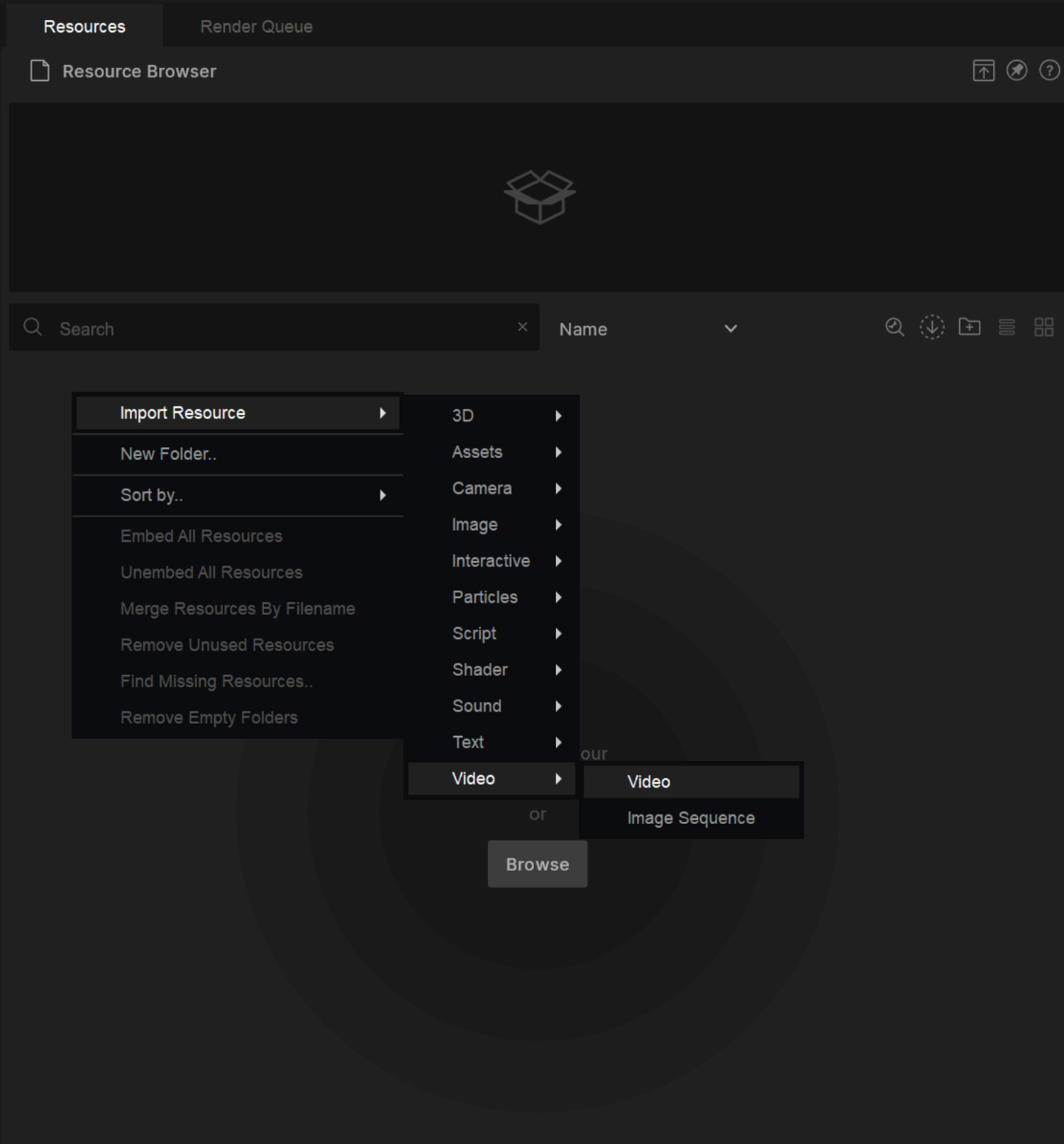
The Video Loader is the standard way to load video and images files into Notch. To use a Video Loader, you must first import a video/image resource into the Resource Browser.
You can do this by either dragging and dropping a file into the Resource Browser, or by right clicking in the Resource Browser and selecting “Import Resource”. From there you can select the type of file you want to import.
Supported image formats
Detailed information about importing files
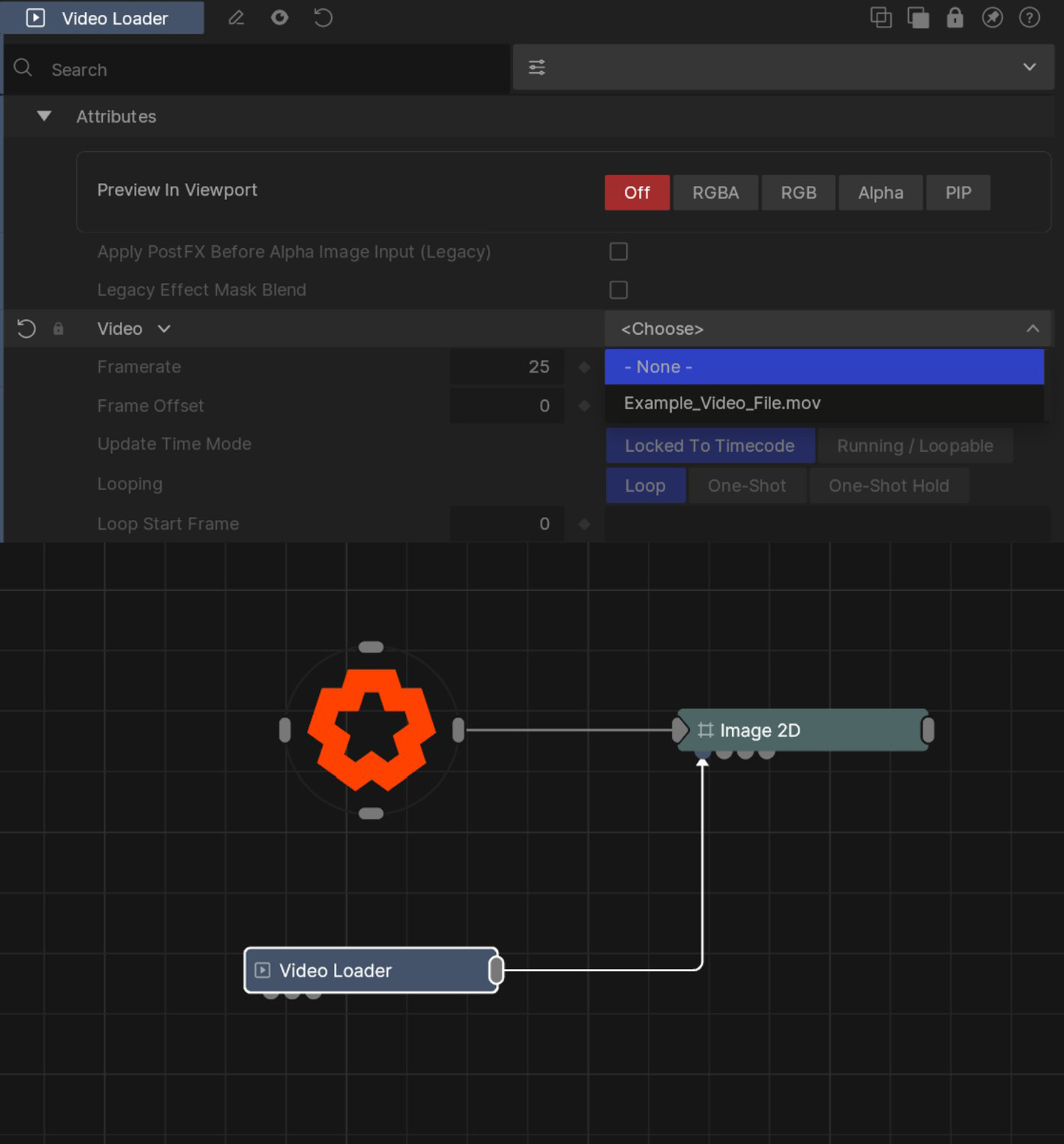
Now you can add a Video Loader node to the Nodegraph and select the newly imported file in the “Video” property.
The simplest way to direct the output of the Video Loader to the viewport, is to connect it to an Image 2D.
This will create an overlay the size of the viewport, and map the texture from the Video Loader on to it.
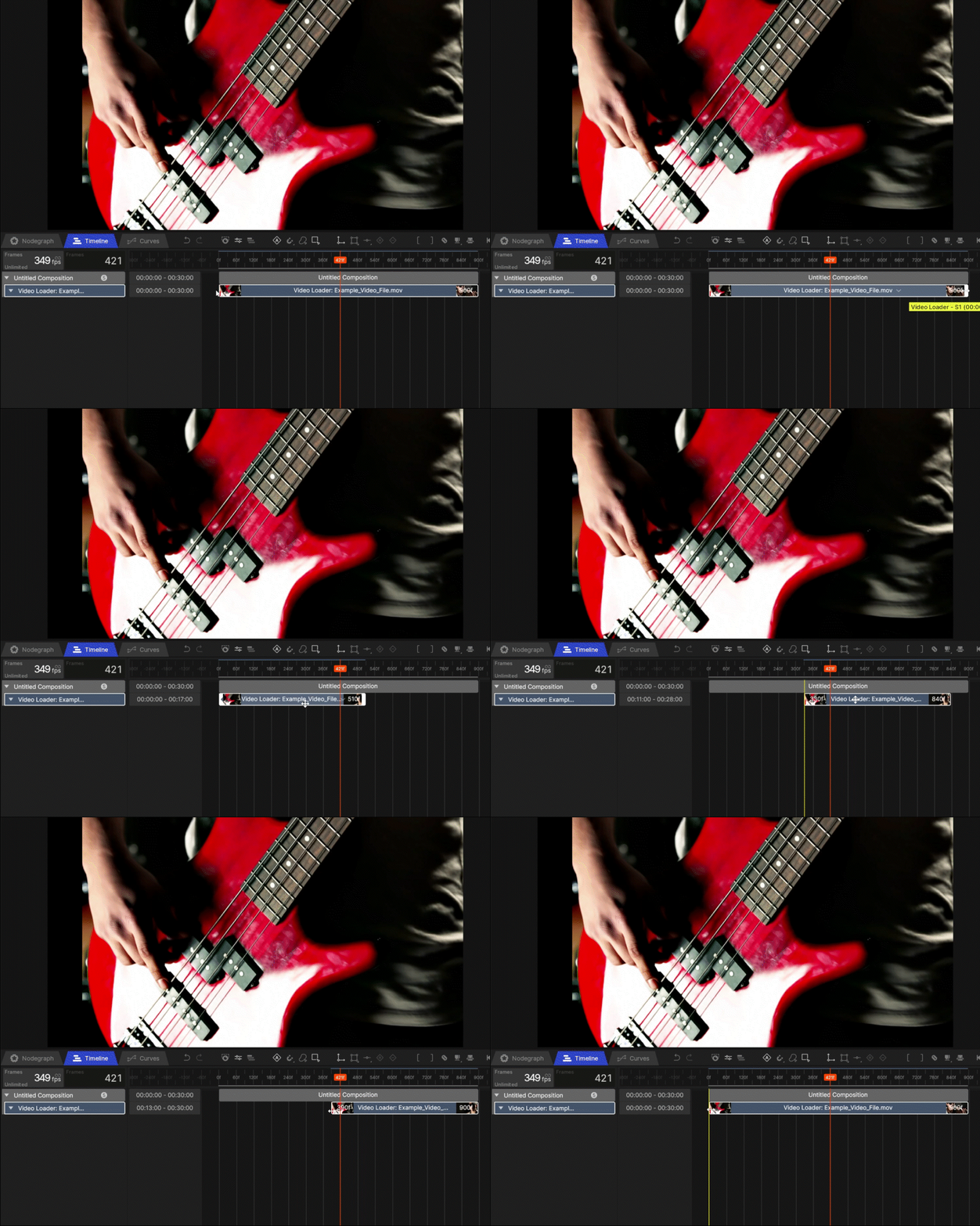
To access the Timeline, click the “Timeline tab” on the central left menu bar, or hit F2.
Video files loaded into a Video Loader can be viewed and edited on the timeline.
Basic operations such as trimming and offsetting the video can be performed here. This can be done by either dragging the edges of the video’s time segment to trim it, or clicking and dragging the center of the time segment to offset the video in time.
Compositing is combining two or more videos/images into a single video/image. There are different Blend Modes that can be used to combine the sources together in different ways.
There are various ways you can composite videos together in Notch. The simplest way is to use a Composite Sources node. This node takes in two video sources and blends them together based on the specified Blend Mode.
Another similar method is to use a Composite Image Post-FX node. This works much the same as the Composite Sources node, but is more lightweight as it doesn’t create a copy of the texture, which can reduce VRAM usage in extreme cases.
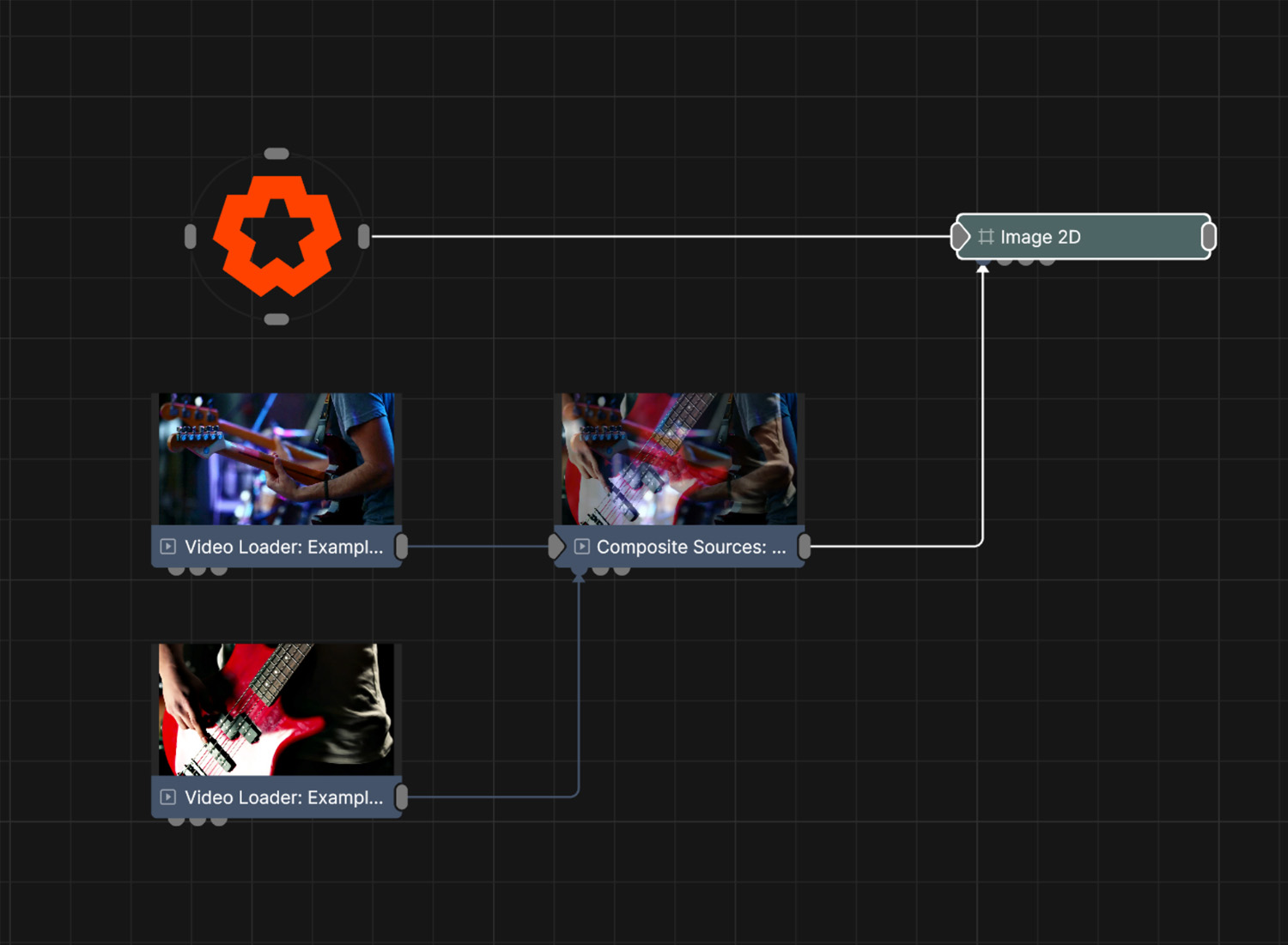
Post-FX nodes can be a added to video chains to apply a vast array of effects such as colour correction, warping, distortion, blur and Anti-aliasing among many others.
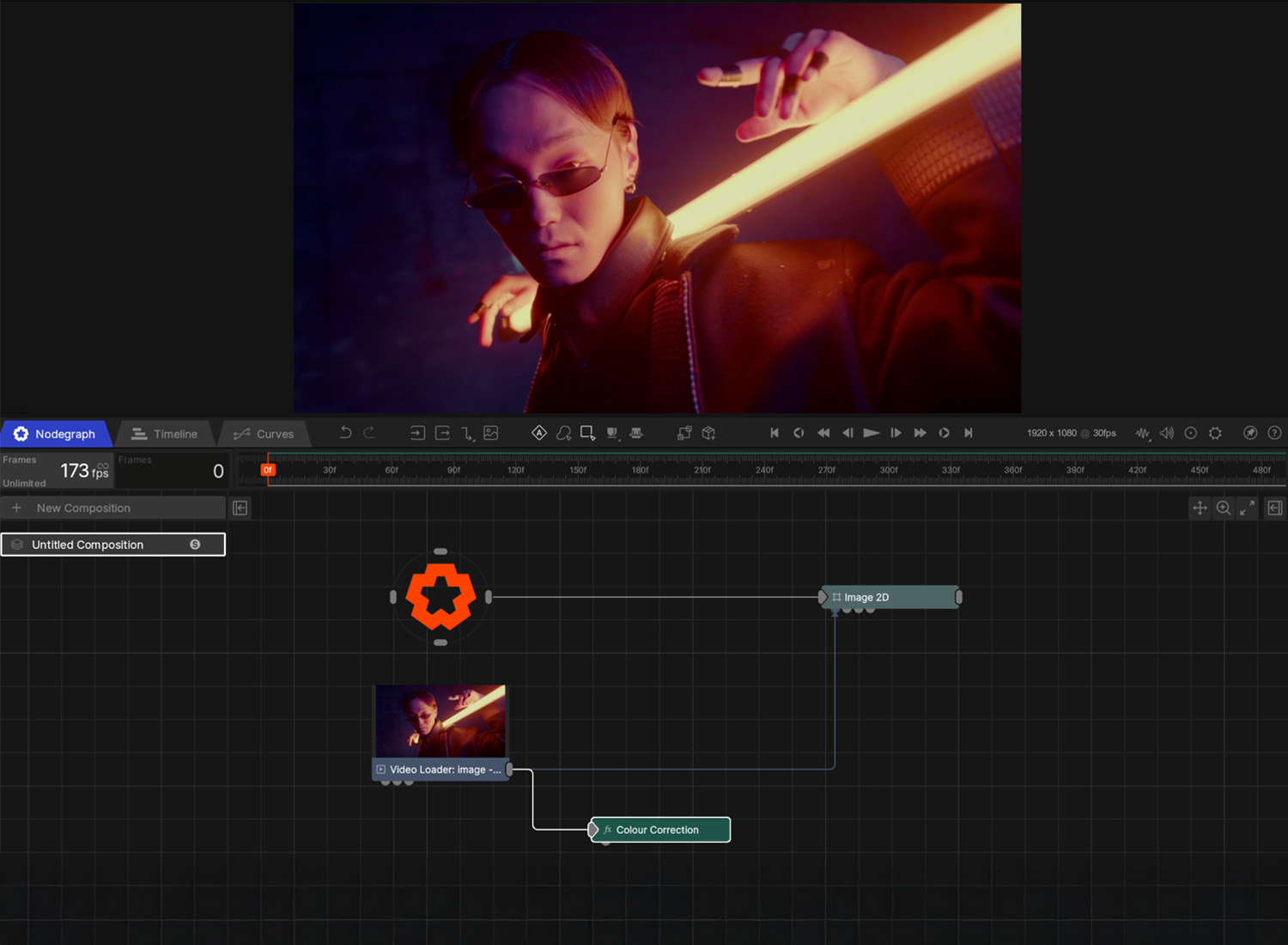
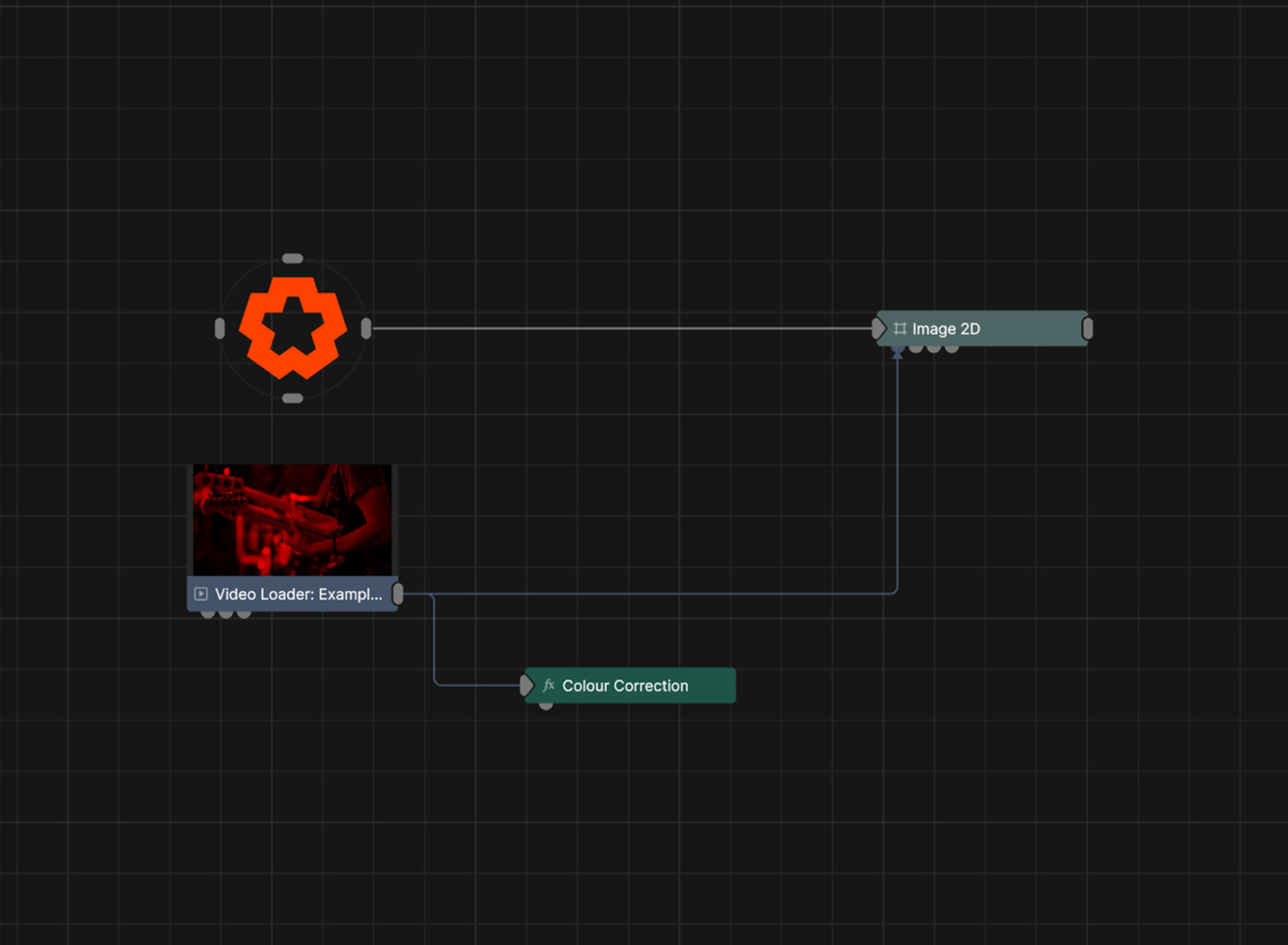
Post-FX nodes only affect the parent, and do not contain a copy of the image. This means that any Post-FX that are applied to a Video Loader for example, will effect the texture stored in that video loader.
As you can see in this image, the Colour Correction node is tinting the texture stored directly in the Video Loader.
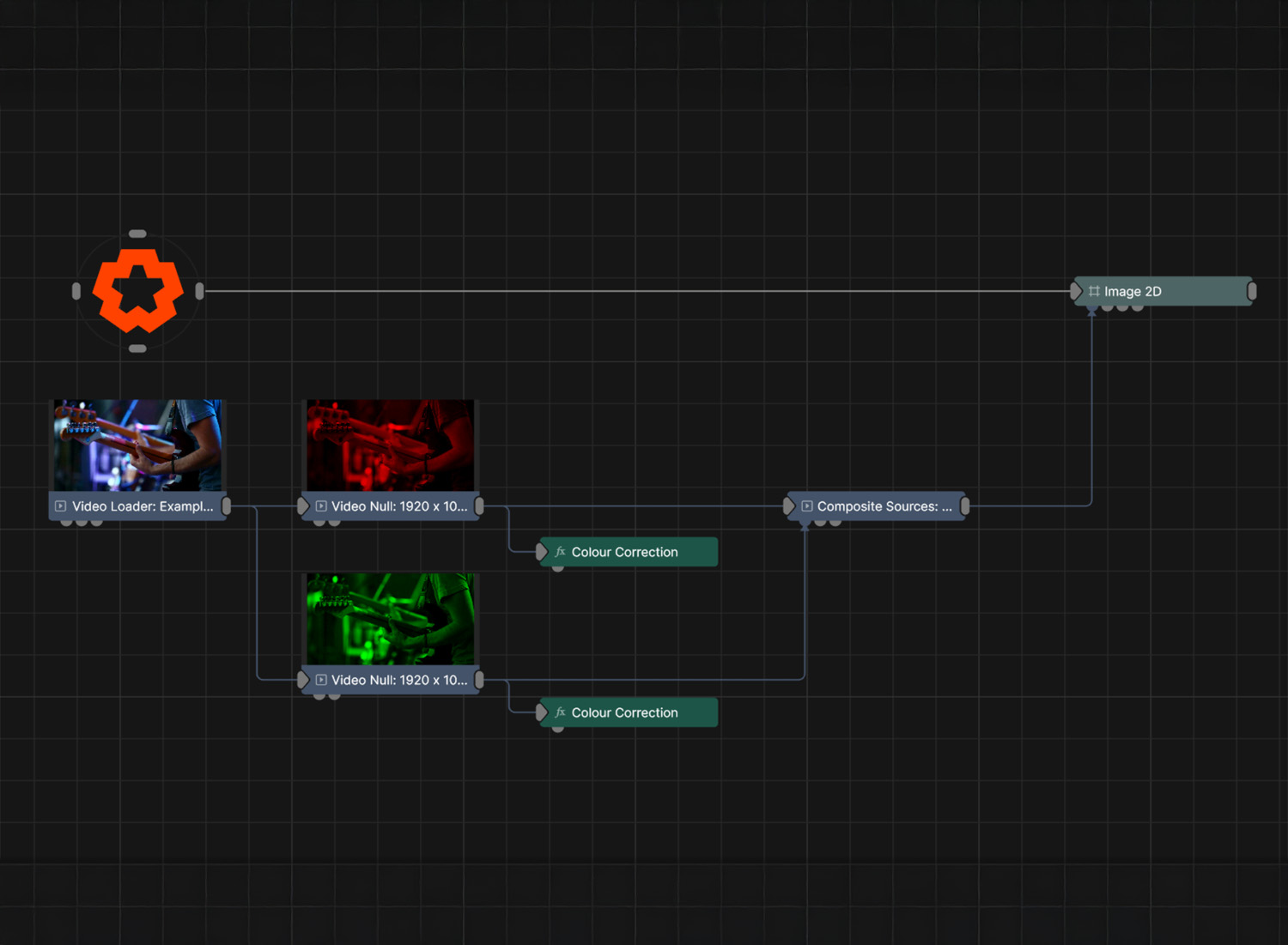
If you want to use the same video source, but apply different, separate Post-FX to it, you can use Video Nulls to create instances of the video texture to apply different Post-FX to.
Post-FX nodes can also be attached to the Root for applying the effect to the whole scene.
Video Nulls will simply copy the video texture from the parent video source. Because they copy the texture, you can use them to act as a “container” to allow you to apply effects to, without affecting the original Video Loader texture.
So you could connect two Video Nulls to the source Video Loader, apply different effects to each of them, and they would not interact with each other, or the source Video Loader.
If the Video Nulls were not used, then both Post-FX would affect the source Video Loader.
If used correctly, individual Video Nulls should not have a large impact on performance, however they do not come for free. Each video null copies the input texture to memory. Excessive use of Video Nulls can lead to high VRAM usage and potentially performance impacts.
Notch has many different tools and workflows to manage colour, on an individual asset level, and on a project level.
Some examples of colour correction tools that could be used as part of a video processing chain are:
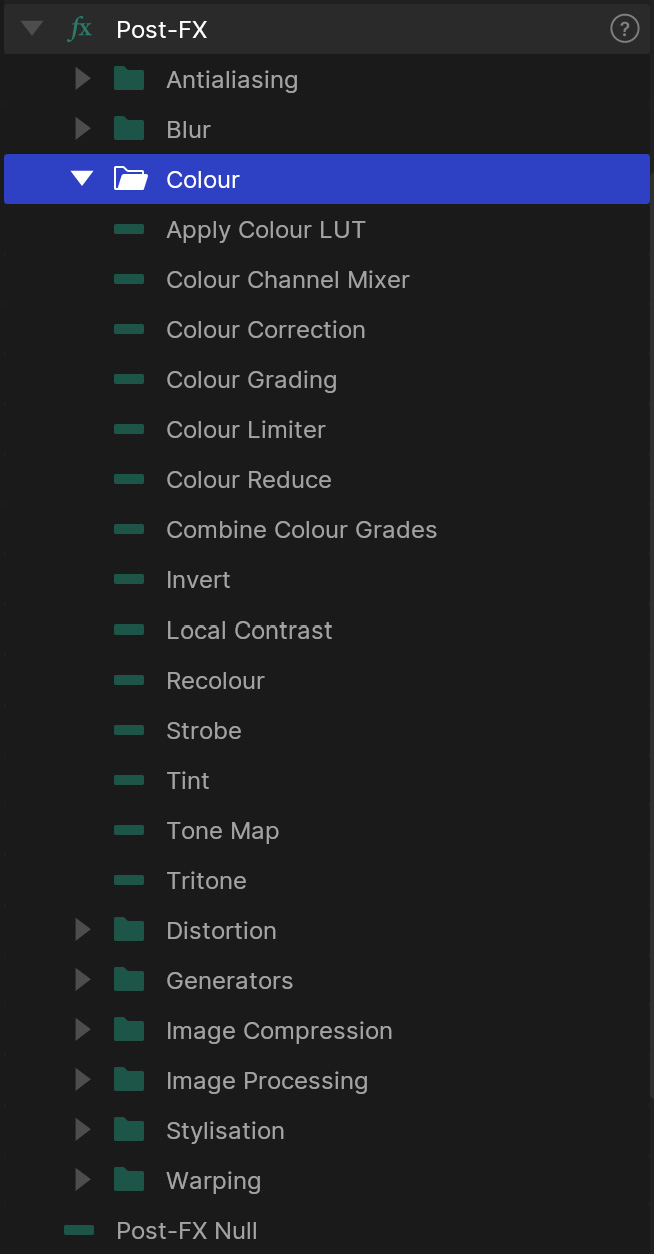
As a basic example of how to apply colour correction to a video/image file, the Colour Correction Post-FX node is a good place to start as it can control all the very basic colour correction properties that you would expect, such as brightness, contrast, saturation, gamma, colour curves as well as others.
You can apply this node in the same way as any other Post-FX node.