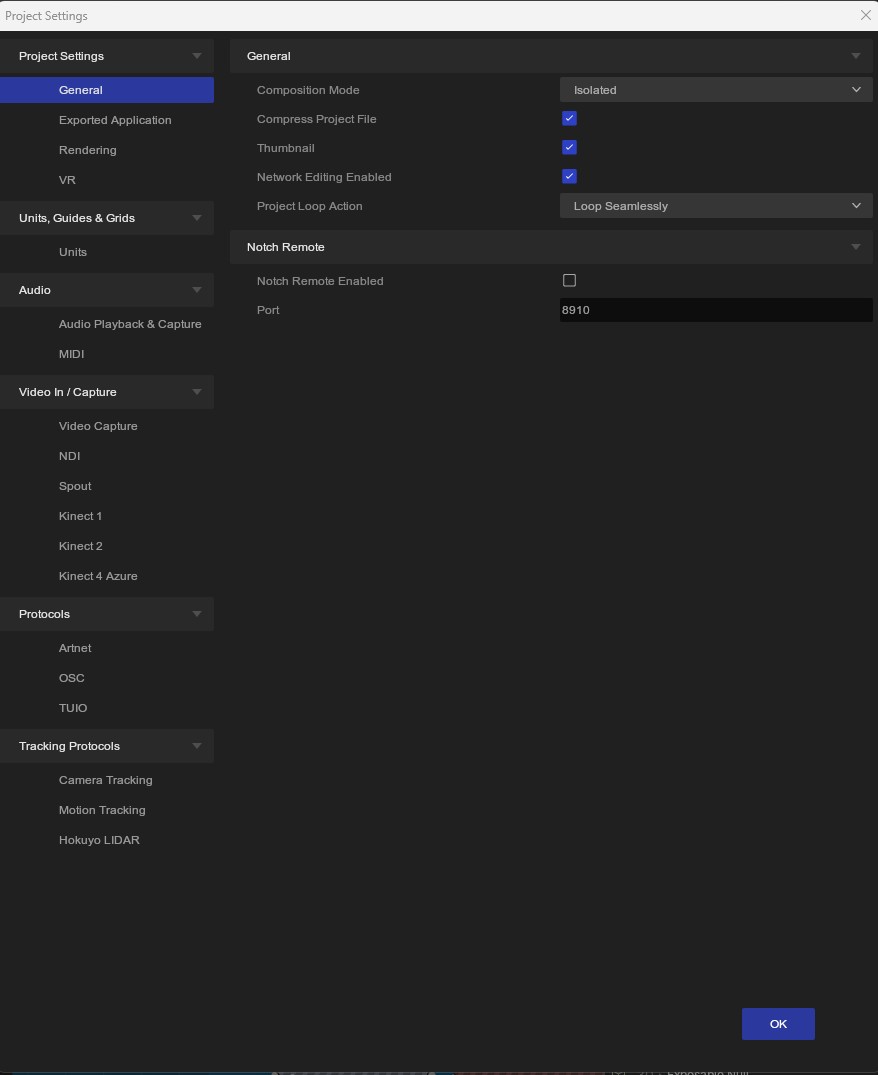
This window lists all of the settings that you set on a project by project basis. If you can’t find a setting it here, it may be in Preferences, which sets preferences that persist between projects.
Select a sub menu on the left to see the project settings relating to that category.
You can access Project Settings by clicking on View -> Project Settings.
General
#
General
#
Large scale properties for setting up your project and its functionalities.
| Label |
Description |
| Composition Mode |
Sets whether compositions are treated as Isolated entities, or Layers of one overall composition. |
| Compress Project File |
Enables compression of the project file to reduce file size when saving. |
| Thumbnail |
Generates or sets a thumbnail preview image for the project file. |
| Network Editing Enabled |
Enables Network Editing functionality. See |
| Project Loop Action |
Defines the behaviour when reaching the end of the timeline/ |
Notch Remote
#
Enable and configure Notch Remote.
| Label |
Description |
| Notch Remote Enabled |
Enables the Notch Remote API for external control of the project. |
| Port |
Network port number for Notch Remote connections. |
Exported Application
#
Settings for controlling Standalone Projects
Exported Application
#
| Label |
Description |
| Window Caption |
Sets the title bar text for the exported standalone application window. |
| Expose Rotations As Degrees |
When enabled, rotation parameters are exposed in degrees instead of radians. |
| Keyboard Transport/ Composition Selection |
Enables keyboard shortcuts for playback transport controls and composition selection inside of standalone applications. |
| Use Optimised Cache Resources In Exported Project |
Includes optimised cached resources in the exported project. Speeds up loading times. |
Setup Dialog
#
| Label |
Description |
| Show Setup Dialog |
Displays the configuration dialogue when the exported application launches. |
| Allow Multi-Monitor |
Enables multi-monitor output support in the exported application. |
| Loading Screen Image |
Set a custom image to display while the exported application is loading. |
Rendering
#
Configure your rendered output and viewport.
Output Resolution
#
| Label |
Description |
| Aspect Ratio |
Sets the aspect ratio for the output (e.g., 16:9, 4:3, custom). |
| Render Width |
Horizontal resolution in pixels of your output. |
| Render Height |
Vertical resolution in pixels of your output. |
| Colour Space |
Defines the colour space for rendering (e.g., sRGB, Linear, Rec.709). |
| Viewport Sizing |
Controls how the viewport scales to match the render resolution. |
| VRAM Budget (mb) |
Maximum VRAM allocation in megabytes for the project. Default of -1 is maximum. |
| Purge VRAM Resources |
Immediately clears unused resources from video memory. |
| Purge Shaders |
Clears shaders from memory. |
| Precache Shaders |
Compiles and caches shaders during project load for smoother playback. |
VR
#
All settings for working with Virtual Reality Headsets.
VR
#
| Label |
Description |
| Preferred VR Device |
Selects the type of VR device. |
Oculus Rift
#
| Label |
Description |
| Enabled In Exported VR Application |
Enables Oculus Rift support in exported VR applications. |
| Require Oculus Touch |
Enables Oculus Touch controllers in the application. |
| Oculus App Store ID |
Application ID for Oculus Store integration. |
HTC Vive / OpenVR
#
| Label |
Description |
| Enabled In Exported VR Application |
Includes HTC Vive/OpenVR support in exported VR applications |
Units
#
Settings for all units and increment settings across the projects UI elements.
Timeline
#
| Label |
Description |
| Timeline Frames Per Second |
Sets the frame rate for the timeline. |
| Snap Time To Grid |
Enables snapping of keyframes and timeline elements to grid divisions. |
| Timeline Grid Division (seconds) |
Time interval in seconds for major grid divisions on the timeline. |
| Timeline Grid Subdivisions |
Number of minor subdivisions within each major grid division. |
Values
#
| Label |
Description |
| Value Grid Division |
Superceded. |
| Snap Time To Grid |
Superceded. |
| Value Grid Subdivisions |
Superceded. |
Viewport
#
| Label |
Description |
| Snap Distance Increment (Coarse) |
Distance in metres for viewport snapping when moving (Shift + drag). |
| Grid Size (Fine) |
Distance in metres for viewport snapping when moving precisely (Ctrl + Shift + Drag). |
| Rotation Increment (Coarse) |
Angle increment in degrees for coarse rotation snapping. |
| Rotation Increment (Fine) |
Angle increment in degrees for fine rotation snapping. |
Audio Playback & Capture
#
All settings for audio. See Audio Devices for more information.
Audio Devices
#
| Label |
Description |
| Audio Playback Device |
Selects the audio output device for playback in the editor. |
| Audio Capture Device |
Selects the audio input device for capturing audio (WDM/DirectShow)in Notch. |
| Audio ASIO Capture Device |
Select an ASIO audio input device. |
Exported Block / Application
#
See This Section for more information.
| Label |
Description |
| Preferred Playback Device Name |
Default audio playback device name for exported applications. When a block is loaded, it will use a fuzzy search with this string to try and find a playback device. |
| Preferred WDM Capture Device Name |
Default WDM audio capture device name for exported applications. When a block is loaded, it will use a fuzzy search with this string to try and find a capture device. |
| Preferred ASIO Capture Device Name |
Default ASIO audio capture device name for exported applications. When a block is loaded, it will use a fuzzy search with this string to try and find an ASIO playback device. |
| Use ASIO Capture If Available |
Automatically selects ASIO capture when available for better latency. When a block is loaded, it will use a fuzzy search with this string to try and find an ASIO playback device. |
MIDI
#
Configure you MIDI devices. MIDI devices will change between PCs, obviously, but the MIDI slot used in any MIDI node will be consistent. When swapping machine or devices, make sure you set your new MIDI devices in the same slot.
MIDI Device Mapper
#
| Label |
Description |
| Slot 0 |
MIDI device assignment for slot 0 |
| Slot 1 |
MIDI device assignment for slot 1 |
| Slot 2 |
MIDI device assignment for slot 2 |
| Slot 3 |
MIDI device assignment for slot 3 |
| Slot 4 |
MIDI device assignment for slot 4 |
| Slot 5 |
MIDI device assignment for slot 5 |
| Slot 6 |
MIDI device assignment for slot 6 |
| Slot 7 |
MIDI device assignment for slot 7 |
Video Capture
#
See Video Capture for setup information.
Video In
#
| Label |
Description |
| Video Capture Enabled |
Enables video capture. |
| Capture Driver Type |
Selects the video capture driver (DirectShow, Media Foundation, etc.) |
Video In Sources
#
| Label |
Description |
| Device |
Selects the video capture device (camera, capture card, etc.) |
| Device Status |
Read Only. Displays the current connection and operational status of the device |
| Target Width |
Set capture width in pixels. |
| Target Height |
Set capture height in pixels. |
| Target FPS |
Desired capture frame rate (frames per second). |
NDI
#
See NDI for more information.
| Label |
Description |
| NDI Sender |
Enables sending video output over NDI. |
| NDI Sender Name |
Custom name for this NDI source on the network. |
| NDI Sources |
Lists available NDI sources on the network for receiving. |
| Refresh NDI Sources |
Rescans the network for available NDI sources. |
Spout
#
Check this out for more spout knowledge.
| Label |
Description |
| Spout Sender |
Enables sending video output via Spout for local sharing. |
| Spout Receiver |
Enables receiving video input via Spout from other applications |
Kinect 1
#
Looking for a comprehensive guide to Kinect Setup?
| Label |
Description |
| Enabled |
Enables support for Microsoft Kinect v1 depth camera. |
| Max Cameras |
Maximum number of Kinect v1 cameras to support simultaneously. |
| Use Colour Image |
Captures RGB colour data from the Kinect camera. |
| Use Skeleton |
Enables skeletal tracking for body recognition. |
| Near Mode |
Enables near mode for close-range depth sensing (0.5m-3m instead of 0.8m-4m). |
| Depth Resolution |
Sets the resolution for depth capture (320x240 or 640x480.) |
| Kinect 1 Status |
Read only. Displays current connection and operational status of Kinect v1 devices. |
Kinect 2
#
Looking for a comprehensive guide to Kinect Setup?
| Label |
Description |
| Enabled |
Enables support for Microsoft Kinect v2 depth camera. |
| Use Colour Image |
Captures RGB colour data from the Kinect v2 camera. |
| Use Skeleton |
Enables skeletal tracking for body recognition. |
| Kinect 2 Status |
Read only. Displays current connection and operational status of Kinect v2 devices |
Kinect 4 Azure
#
Looking for a comprehensive guide to Kinect Setup?
| Label |
Description |
| Enabled |
Enables support for Microsoft Azure Kinect depth camera. |
| Use Colour Image |
Captures RGB colour data from the Azure Kinect camera. |
| Use Skeleton |
Enables skeletal tracking for body recognition. |
| Use Body Index Masking |
Enables body segmentation masking to isolate tracked individuals. |
| Kinect 4 Azure Status |
Read only. Displays current connection and operational status of Azure Kinect devices. |
Artnet
#
Artnet network setup.
| Label |
Description |
| Artnet Enabled |
Enables Artnet DMX lighting input. |
| Artnet IP Address |
IP address for Artnet network communication. |
| Artnet Global Offset |
Global universe offset applied to all Artnet data. |
| Artnet Transport - Artnet Controls Play/Pause |
Allows Artnet commands to control timeline playback. |
| Artnet Can Change Layer |
Permits Artnet commands to switch between render layers. |
OSC
#
OSC communication settings.
| Label |
Description |
| OSC Enabled |
Enables Open Sound Control (OSC) protocol for parameter control. |
| OSC Transport Enabled |
Allows OSC messages to control timeline transport (play/pause/time). |
| OSC Receiver Port |
UDP port number for receiving incoming OSC messages. |
| OSC Sender IP Address |
IP address for sending outgoing OSC messages. |
| OSC Sender Port |
UDP port number for sending outgoing OSC messages. |
| OSC |
Read only. Displays current connection state. |
TUIO
#
TUIO communication settings.
| Label |
Description |
| TUIO Enabled |
Enables TUIO protocol input. |
| TUIO Receiver IP Address |
IP address for receiving TUIO data. |
| TUIO Receiver Port |
UDP port number for receiving TUIO messages (defaults to 3333). |
| TUIO Receiver |
Read only. Displays current connection state. |
Camera Tracking
#
Camera tracking system communication settings.
Stype
#
| Label |
Description |
| Stype Enabled |
Enables Stype camera tracking system input. |
| Stype |
Read only. Displays current connection state. |
| Stype Network Adapter IP Address |
IP address of the network adapter receiving Stype data. |
| Stype Port |
UDP port number for receiving Stype tracking data. |
NCAM
#
| Label |
Description |
| NCAM Enabled |
Enables NCAM Reality camera tracking. |
| NCAM |
Read only. Displays current connection state. |
| NCAM Server IP Address |
IP address of the NCAM tracking server. |
| NCAM Port |
TCP/UDP port number for receiving NCAM tracking data. |
Mo-Sys
#
| Label |
Description |
| Mo-Sys Enabled |
Enables Mo-Sys camera tracking. |
| Mo-Sys |
Read only. Displays current connection state. |
| Mo-Sys Network Adapter IP Address |
IP address of the network adapter receiving Mo-Sys data. |
| Mo-Sys Port |
UDP port number for receiving Mo-Sys tracking data. |
Motion Tracking
#
Motion tracking system communication settings.
Blacktrax
#
More Info here.
| Label |
Description |
| Blacktrax Enabled |
Enables BlackTrax tracking input. |
| Blacktrax |
Read only. Displays current connection state. |
| Blacktrax Server IP Address |
IP address of the BlackTrax tracking server. |
| Blacktrax Port |
UDP port number for receiving BlackTrax tracking data. |
Motive
#
More info on using Motive can be found Here and Here.
| Label |
Description |
| Motive Enabled |
Enables OptiTrack mocap input. |
| Motive |
Read only. Displays current connection state. |
| Motive Server IP Address |
IP address of the Motive/OptiTrack server. |
| Motive Port |
UDP port number for receiving Motive tracking data (defaults to 1511). |
Hokuyo LIDAR
#
Hokuyo LIDAR setup.
Hokuyo Lidar Sensors
#
| Label |
Description |
| Connection Status |
Read only. Displays current connection state. |
| IP Address |
IP address of the Hokuyo LIDAR sensor. |
| Port |
TCP port number for communicating with sensors. |
| Connect |
Button to initiate or terminate connection to sensors. |